OBS Studio controls
OBS Studio is a free, open-source app for recording video and live streaming. You build scenes from sources like cameras, screen captures, and graphics, then use the mixer to adjust microphones and other audio. Visit the OBS Project for downloads and guides.
EspDesktop turns your touchscreen into a controller for OBS Studio on your Mac. Start with a ready-made page for scenes, audio, or recording controls, then add the cards you want within easy reach.

This example puts recording and streaming controls on Home, with Scenes and Audio one tap away.
Connect OBS Studio
Use a paired EspDesktop display and matching Mac app and display firmware builds that support OBS cards. Keep both OBS Studio and EspDesktop open on the Mac.
- In OBS Studio, open Tools → WebSocket Server Settings. Enable the server and keep authentication enabled.
- In the EspDesktop Mac app, open Settings → OBS. Enter the port and password from OBS. The usual port is 4455, but use the value shown in OBS if you changed it. Choose Connect and wait for Connected to OBS. OBS remote control guide
- Open your display’s web editor and select an empty tile on Layout. In Choose Card, select OBS Studio. If the picker shows connector tabs, look under Companion.
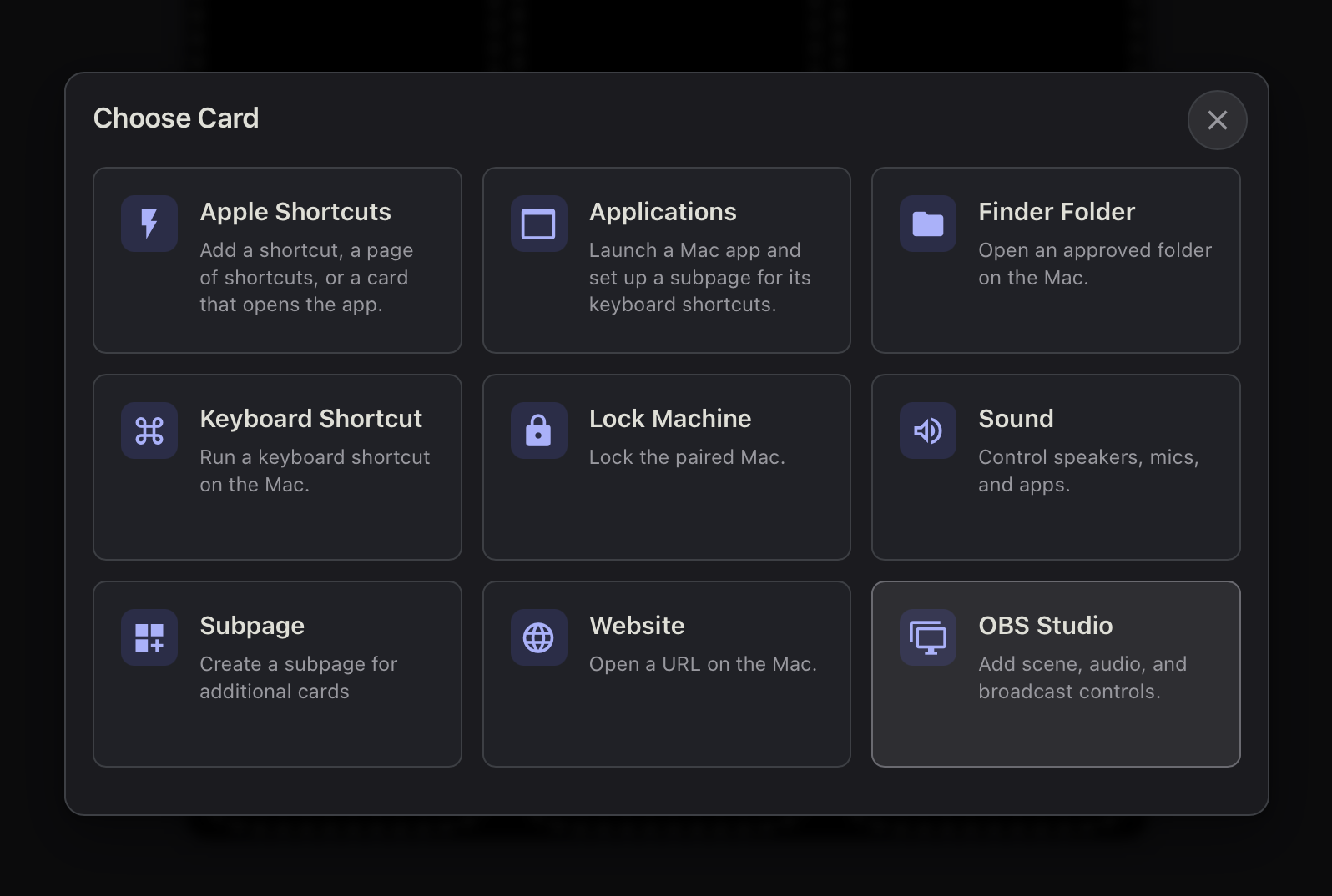
Start with grouped pages
In the OBS Studio picker, look under Grouped pages. Pick one and choose Save. Tap its card on the touchscreen to open the page, then tap Back to return. Repeat for each page you want.
| Page | What you get |
|---|---|
| Audio | Volume sliders for the inputs in the OBS mixer. |
| Scenes | Buttons for scenes in the current collection, with Break, Transition, and Take Live where there’s room. |
| Studio Control | Record, Stream, Studio Mode, Replay Buffer, and Save Replay in one layout. |
| Transitions | One button per scene transition configured in OBS. |
For a first check, add Scenes and Audio. With Studio Mode on, select a scene and check that it appears in Preview in OBS. Make a short test recording and listen back to check your mix.
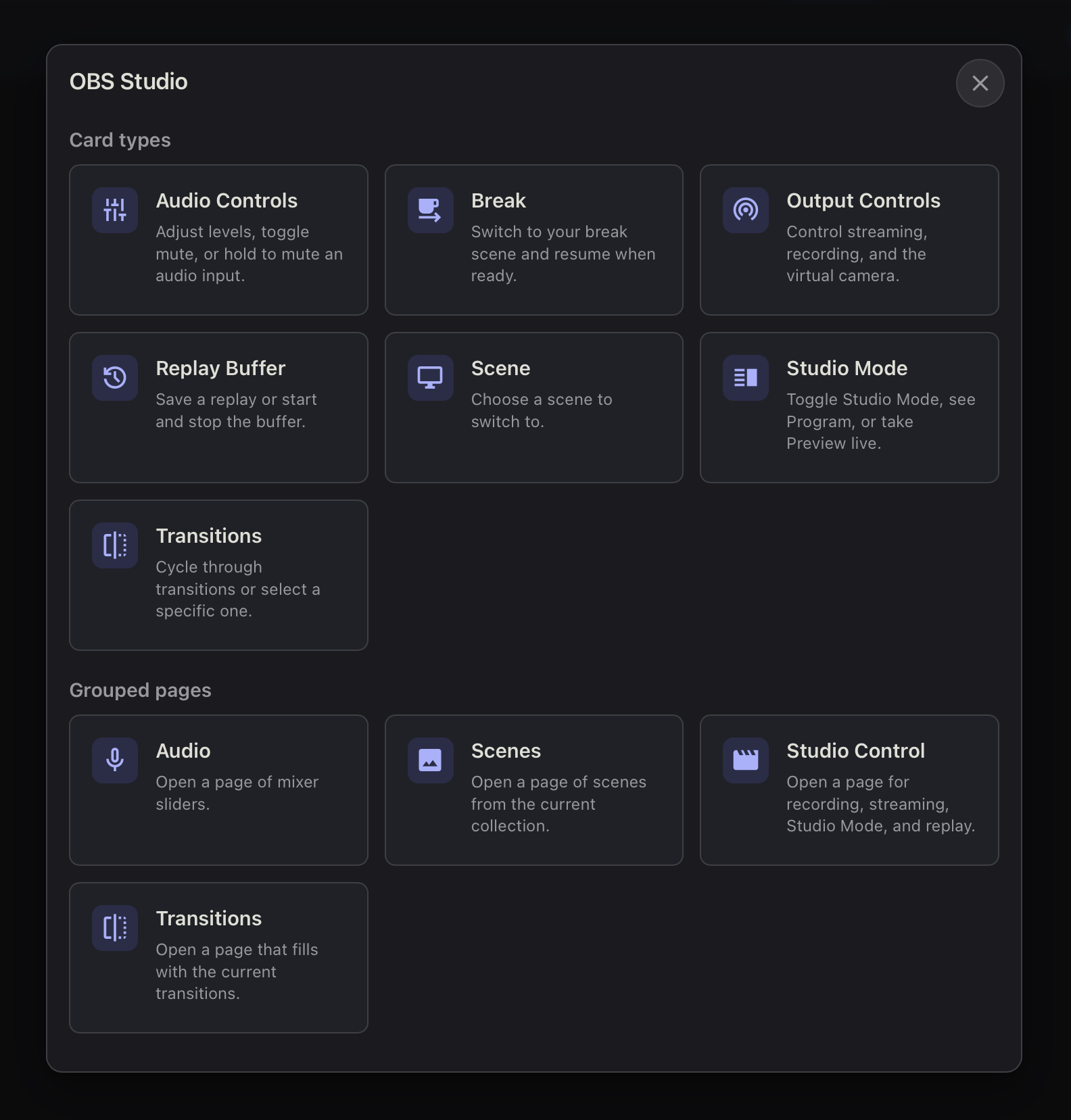
Choose what to control
Add individual controls from Add Card → OBS Studio → Card types. You can put them on Home or in a subpage.
| Card type | Options and setup |
|---|---|
| Audio Controls | Level, Input State, or Cough. Choose a mixer input. |
| Break | Set up a break scene and optional mute in the Mac app. |
| Output Controls | Streaming, Recording, or Virtual Camera. |
| Replay Buffer | Save Replay or Start / Stop Buffer. |
| Scene | Choose a scene from the current collection. |
| Studio Mode | Studio Mode, Program scene, Take Live, or Open Multiview. |
| Transitions | Cycle transitions or Select a transition. |
Choose Open the OBS Studio App to add an Applications card with OBS Studio already selected. Saving the card adds an app subpage with OBS Studio keyboard shortcuts.
Customise an OBS card or page
- Rename or recolour a card. Open Edit Card → Card Settings to change its Label or icon. Open Custom Colours to change its colours. Cards with a status subtitle still show the current OBS state.
- Choose which automatic cards appear. Open Edit Card on the card that opens your Audio, Scenes, or Transitions page. Use the switches to hide items and the drag handles or arrows to reorder them, then choose Save. New OBS items fill available spaces.
- Arrange the layout. Use Edit Subpage to move cards or add controls to empty cells. Drag an automatic card to save it in another cell, or choose Edit Card → Save to save it in place. Cancelling the edit keeps it automatic. Deleting an automatic card from the layout also hides that item from the automatic list. Studio Control starts with editable preset cards.
FAQ
Can I control OBS Studio from a touchscreen on my Mac?
Yes. Pair your display with the EspDesktop Mac app, then connect the app to OBS Studio using its built-in WebSocket server. Add OBS Studio cards to the display for the scenes, audio inputs, and broadcast controls you use.
Why is the OBS tab missing in EspDesktop?
EspDesktop shows Settings → OBS when it finds OBS Studio installed in an Applications folder on your Mac. Check where OBS Studio is installed if the tab is missing.
Why can’t EspDesktop connect to OBS Studio?
Open OBS Studio and check that the WebSocket server is enabled. Match the port and password in Settings → OBS in EspDesktop. A saved password appears as dots until you click the field. Leave the field blank and choose Reconnect to reuse the saved password.
Can I switch scenes without putting them live immediately?
Yes. Turn on Studio Mode and tap a scene card to select it in Preview. Use Take Live to send that scene to Program, the feed OBS is outputting.
Can I mute my OBS microphone from the touchscreen?
Yes. Add an Audio Controls card, set Type to Input State, and choose the microphone from the OBS mixer. Use Cough to mute it only while you hold the card.
