Set up your first touchscreen layout
The setup wizard helps you build your first Home screen. Open the web editor for an empty display. If your Mac isn’t connected yet, the wizard starts with Connect your Mac. Choose Open EspDesktop on your Mac if you have a version that supports the launch link, or choose Download EspDesktop for Mac to get the app. Use the pairing code if prompted. Once connected, choose Next. Install and pair the Mac app.
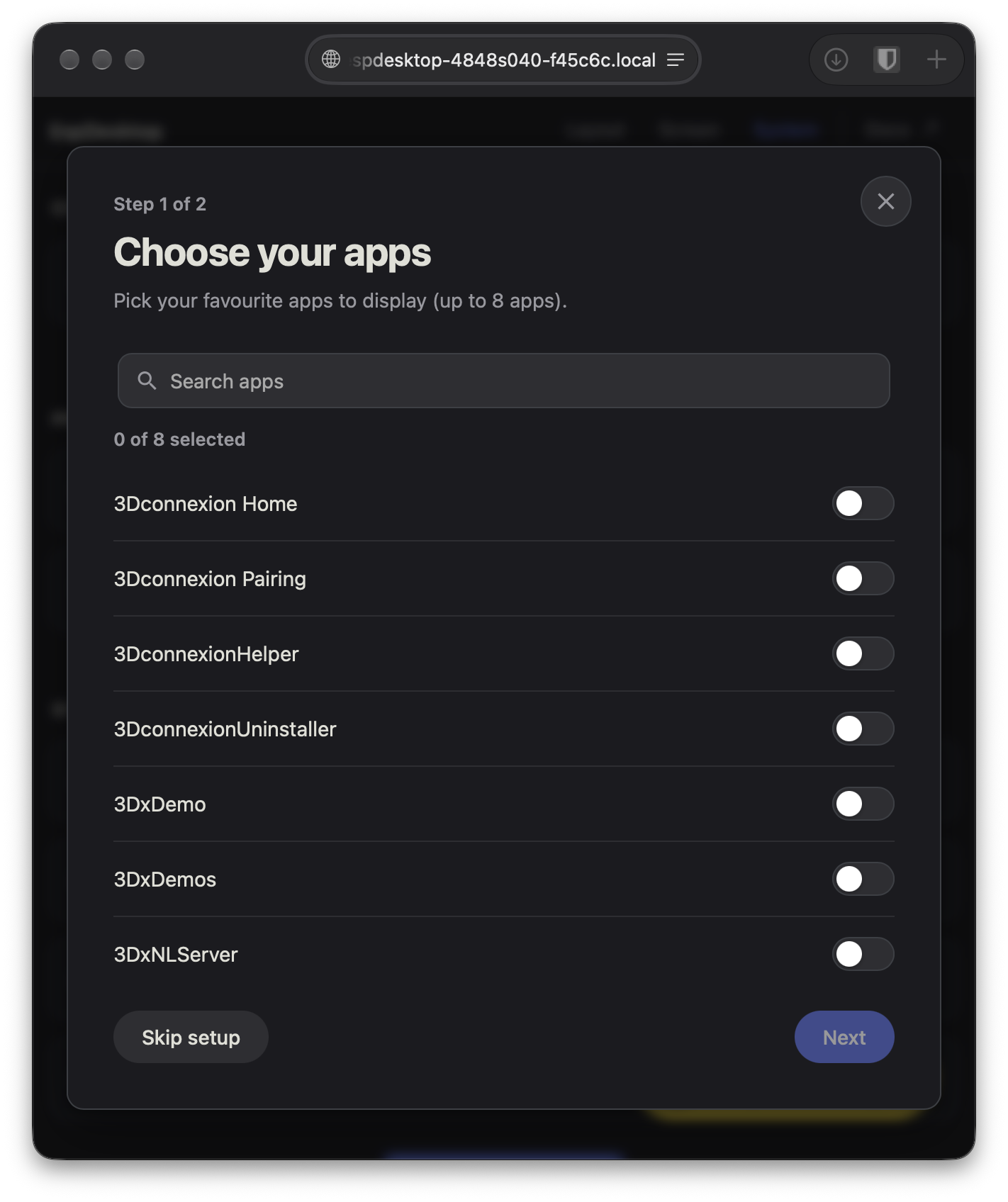
1. Choose your apps
Use Search apps to find the Mac apps you use most often. Turn on the apps you want on your display, then choose Next. You can pick up to eight, depending on your display’s grid size. Setup leaves at least one tile free.
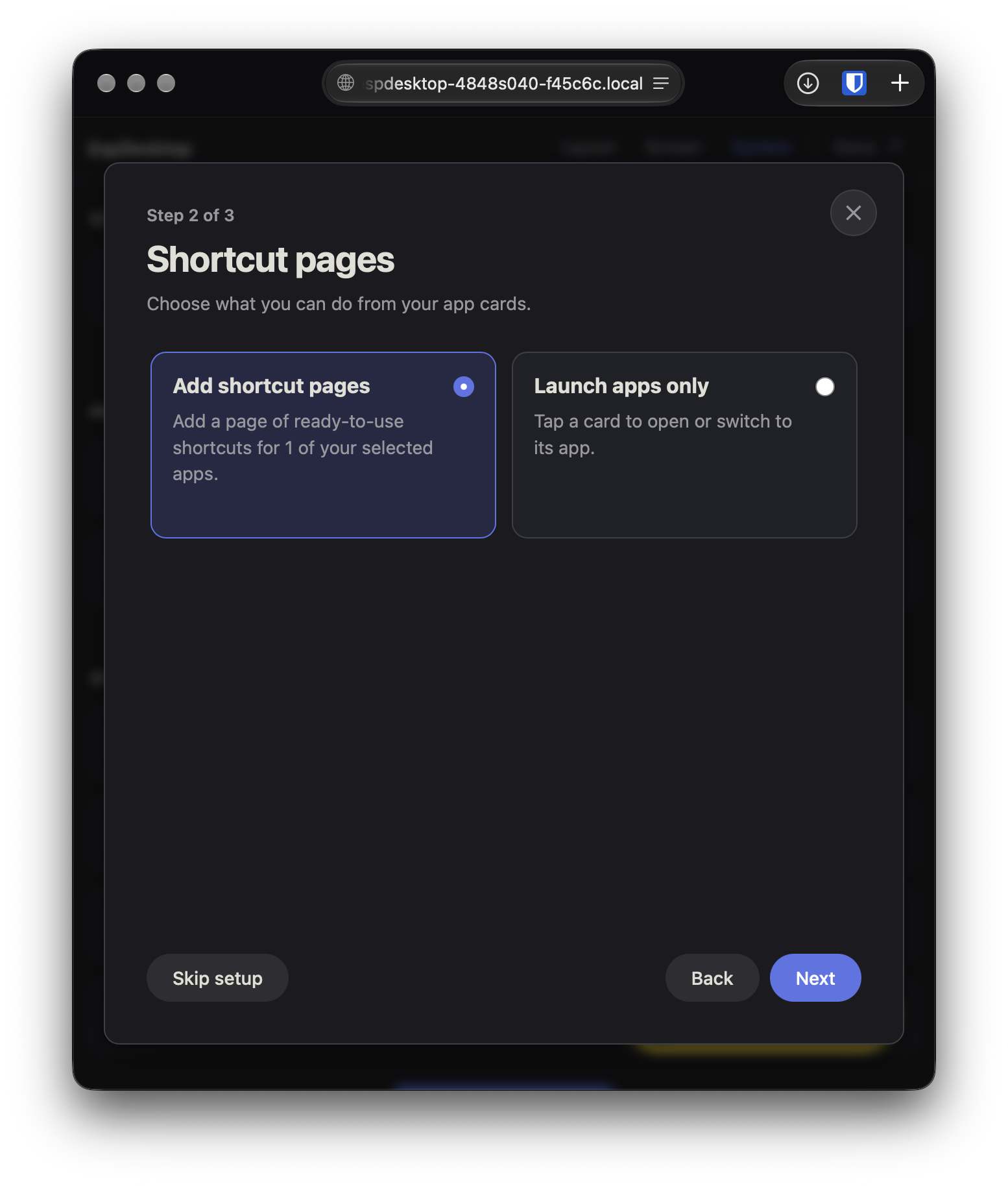
2. Choose whether to add shortcut pages
The wizard selects Add shortcut pages when at least one of your chosen apps has built-in shortcuts. It adds the ready-to-use shortcuts automatically when you save, and you can edit them later. Edit app shortcut pages.
Choose Launch apps only if you want each card to open its app or bring it to the front. Select Done to save.
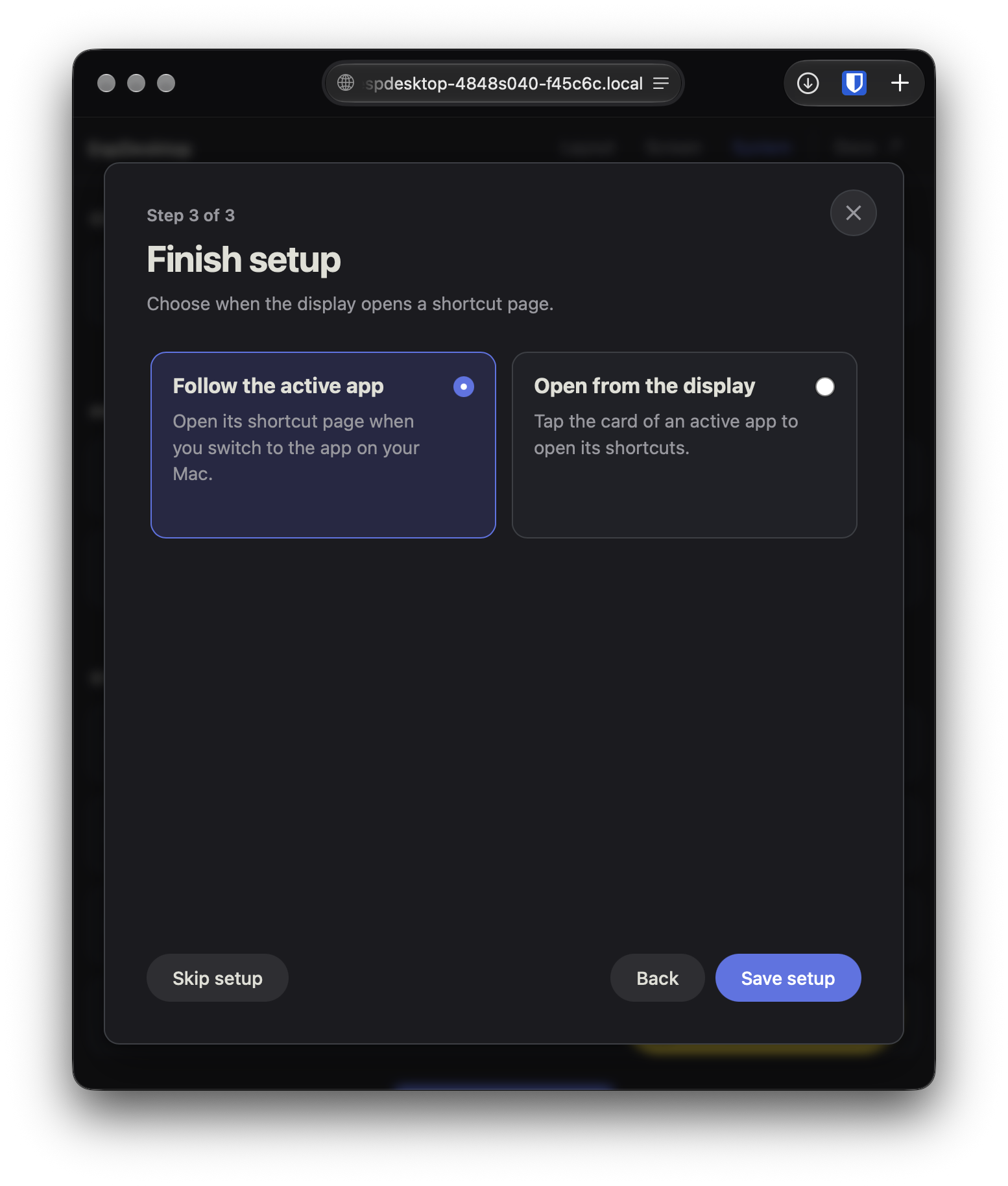
3. Choose when shortcut pages open
If you added shortcut pages, choose how to open them.
- Follow the active app opens its shortcut page on the display when you switch to that app on your Mac.
- Open from the display lets you open the shortcuts by tapping the app’s card when that app is already active on your Mac.
Choose Save setup. You can change this choice later under Screen → Appearance → App Subpages → Open app subpages on focus.
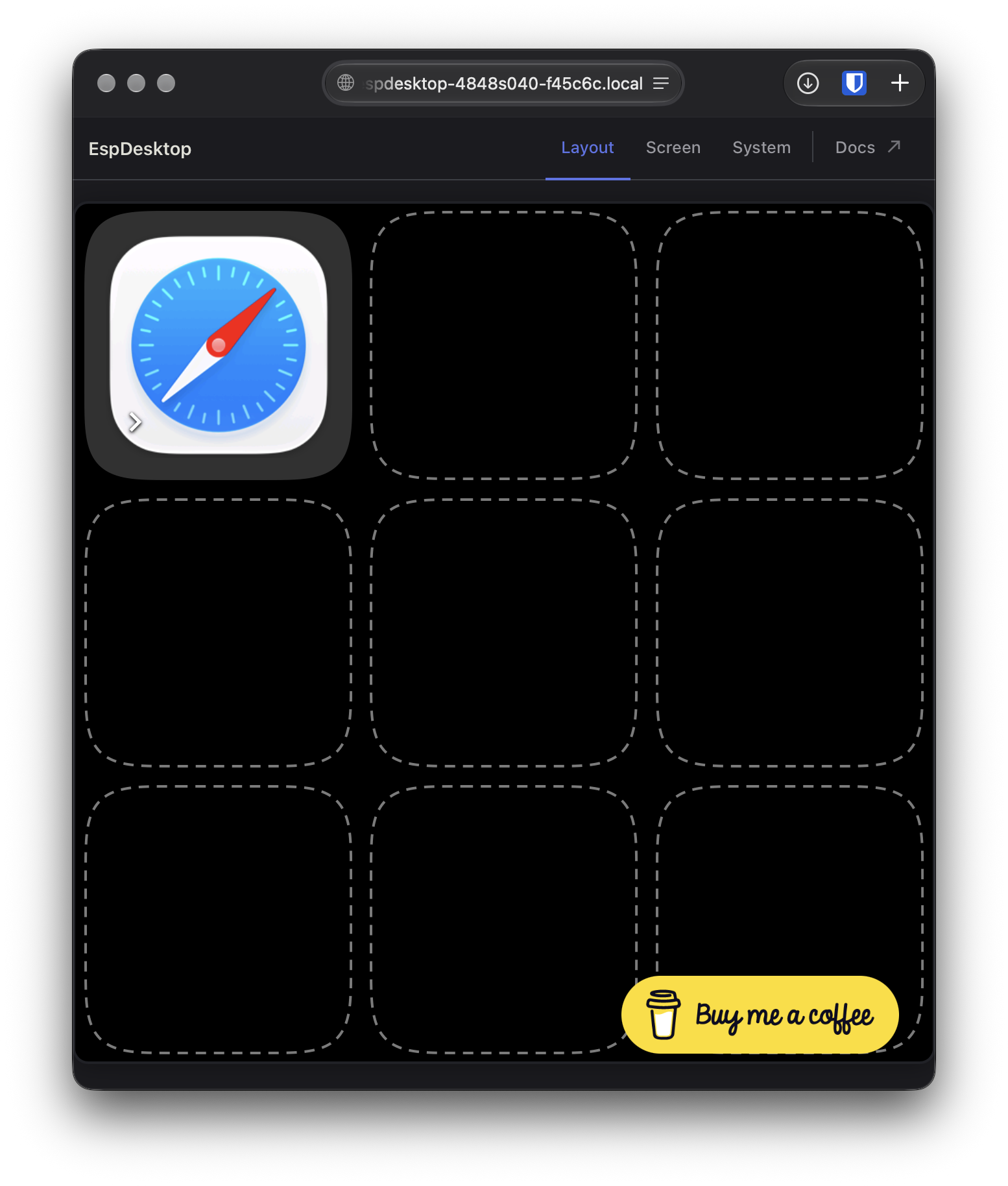
Your Home screen
Your app cards appear on the display and in the web editor’s Layout tab. A small arrow on a card shows that it has a shortcut page. Use the empty tile to add another control. Add a card.
You can choose Skip setup to build your layout by hand. To run the wizard again, open Screen → Appearance → App Subpages → Setup Again. Saving again replaces your existing layout. Close the wizard with × to keep your current layout.
