Open Finder folders
Folder cards open only the Finder folders you approve in the Mac app. Folder paths stay on the Mac; the display receives a friendly name and an anonymous identifier.
Approve a folder
In the EspDesktop Mac app, open Settings → Folders, click Add Folder… and select a folder.
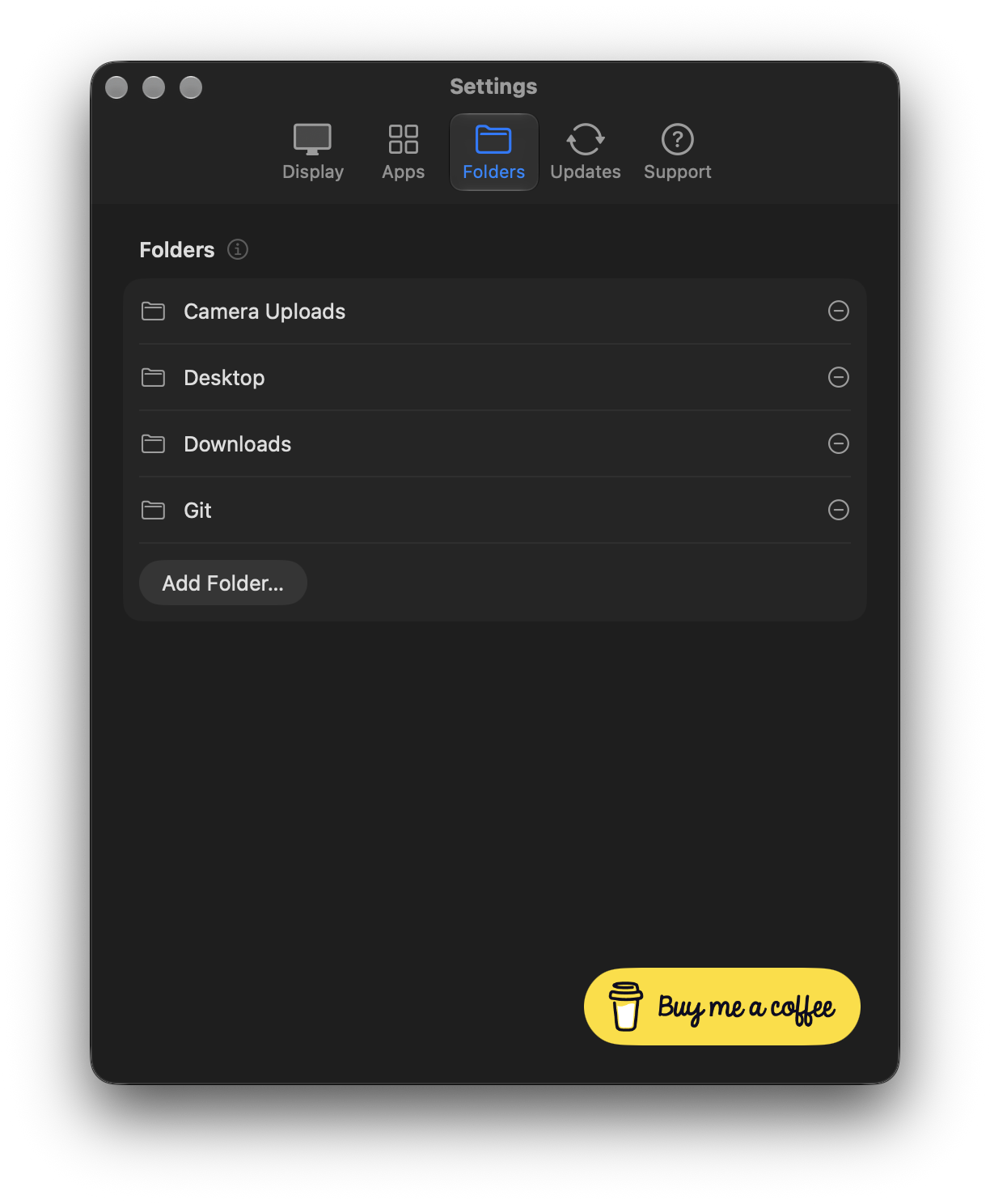
Add a folder card
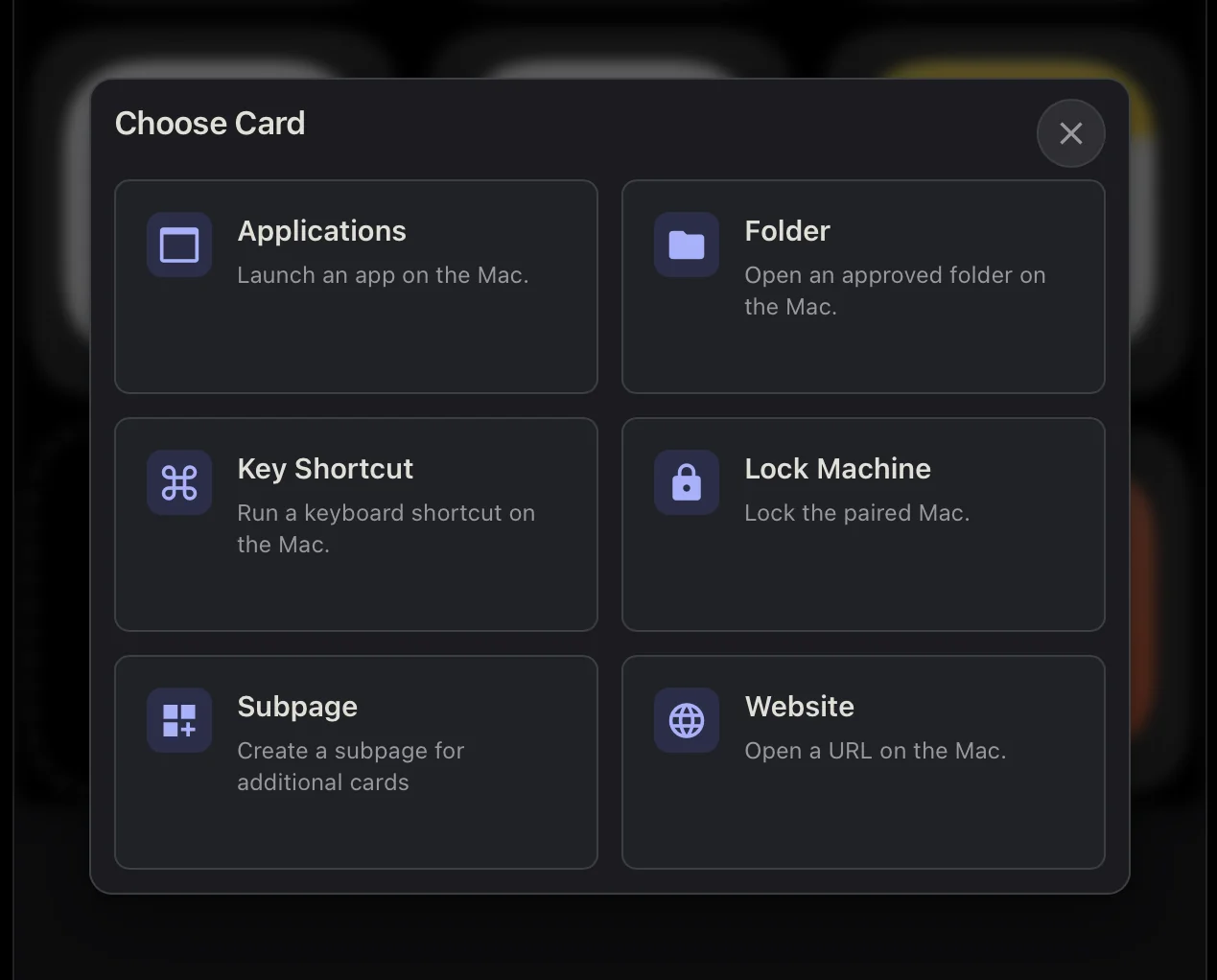
- In the display’s web editor, select an empty tile and choose Folder. If the card picker shows connector tabs, look under Companion.
- Select the folder you approved and choose Save.
In the card’s Advanced section, set Open folder in to A new window or The same window.
If a folder is moved or renamed, choose Choose Again… in the Mac app to restore its access. Removing a folder from the Mac app makes its card unavailable.
Finder folder subpage
To access your approved folders from one Finder card, select an empty tile in the display’s web editor, choose Applications and pick Finder. If you limit which apps the display can launch, first enable Finder under Apps in the Mac app.
In the Finder card’s settings, open App Subpage, turn on Add app subpage and choose Save. While your Mac is connected, the Finder subpage automatically shows the folders you added in the Mac app, filling the available spaces on the touchscreen and in the web editor preview.
Use Pin Finder folders to keep selected tiles in place and drag them into order. Pinned tiles stay visible when your Mac disconnects.
Under App Subpage, use Folder shortcuts open in to set the default window behaviour. A folder tile can use that default or override it under Advanced → Open folder in.
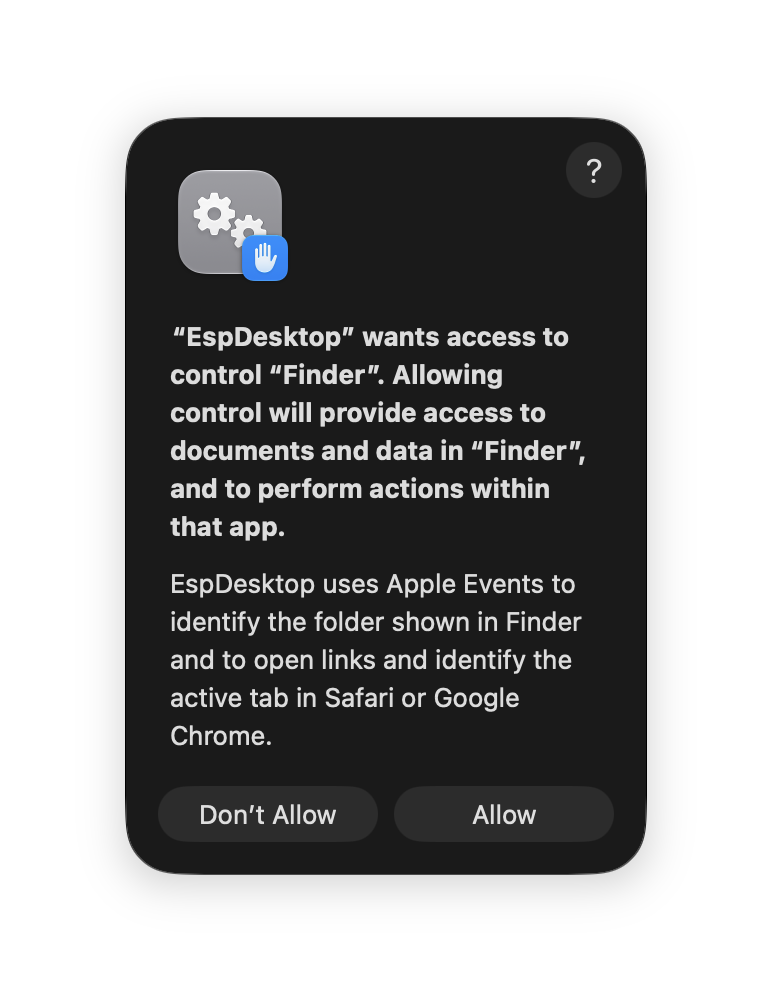
Each folder card lights up when its folder is active in Finder. Folder highlighting may ask macOS to let EspDesktop control Finder.
For app launch behavior and other generated app pages, see Launch Mac apps.
