Mac Companion permissions and security
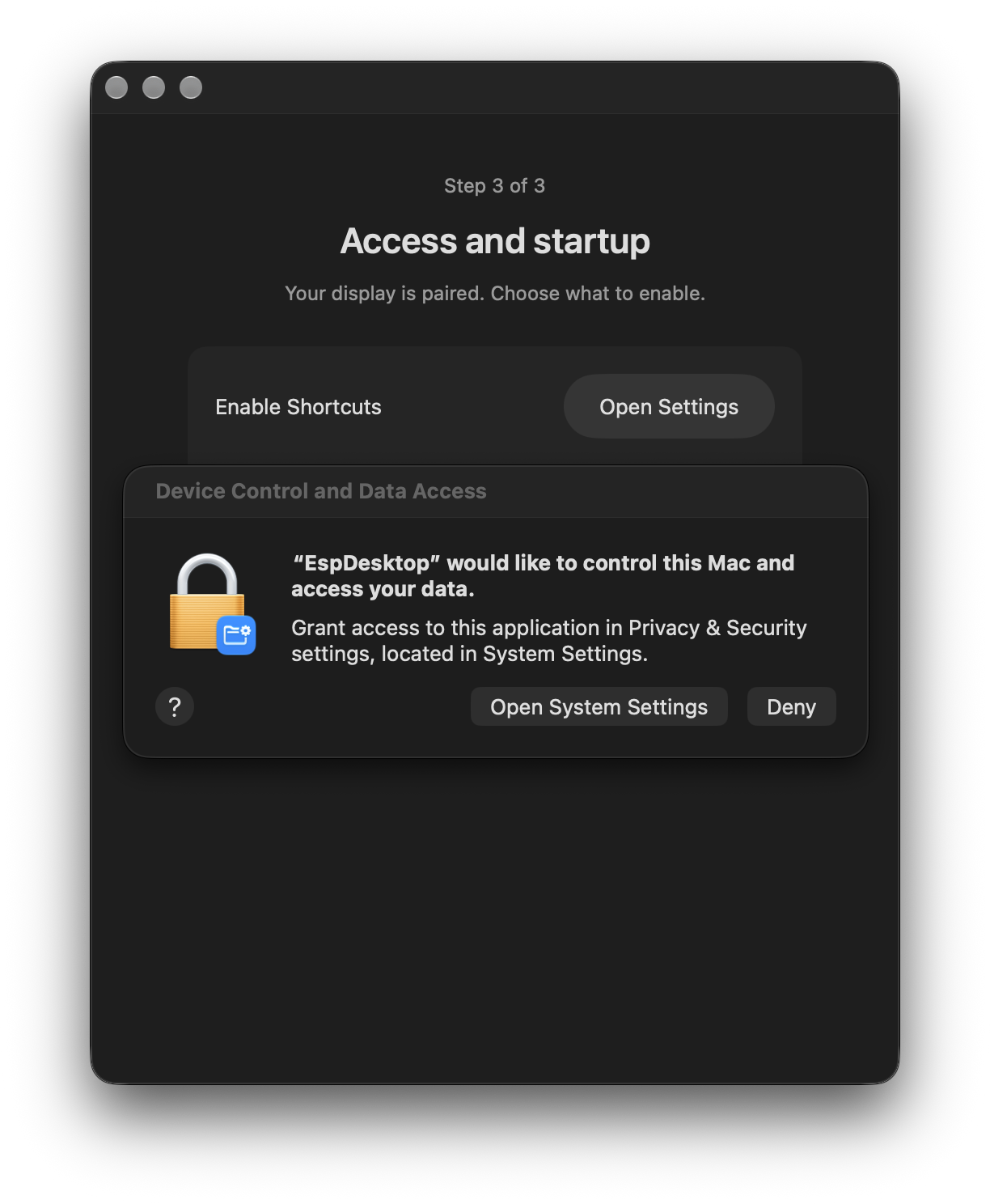
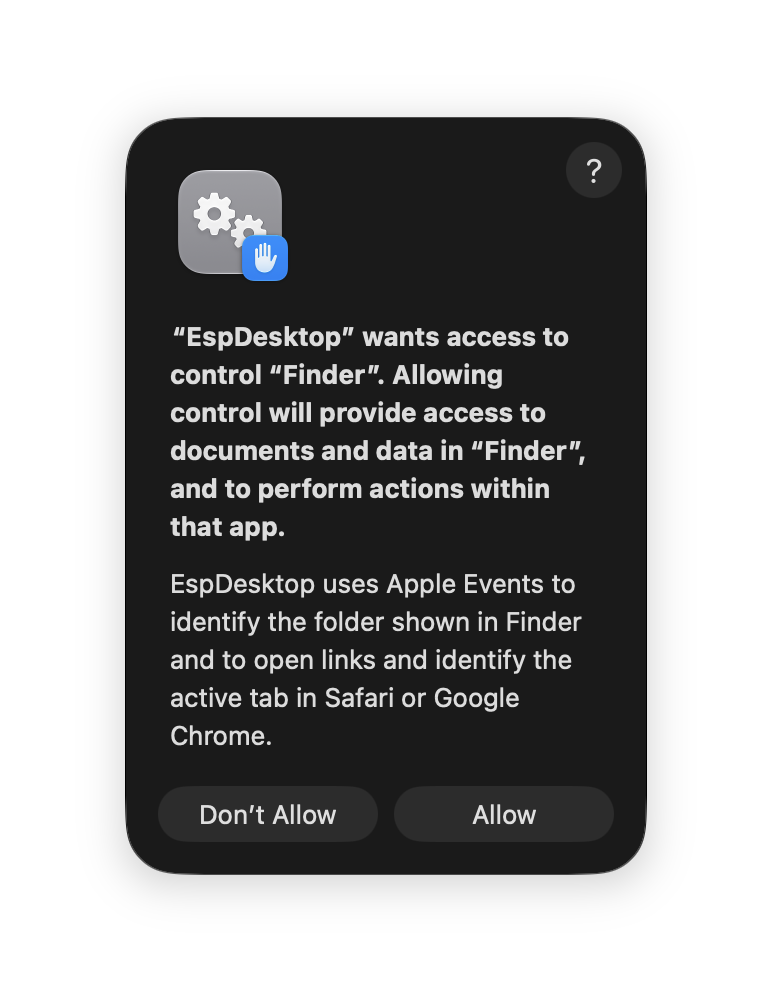
The EspDesktop touchscreen sends its requests over your local network to the paired Mac app. The app checks the request and acts on the Mac. It opens only apps and folders you approve, and sends keyboard shortcuts only after you enable Accessibility for EspDesktop.
Folder paths stay on the Mac. The display uses a friendly name and an anonymous identifier for each folder. Firmware and app update checks can contact the project's public hosting, separately from local pairing and control.
| Feature | Approval or permission |
|---|---|
| Launching an app | Approve it on the Mac app's Apps page |
| Opening a folder | Add it on the Mac app's Folders page |
| Keyboard shortcuts and Mac Lock | Enable EspDesktop in System Settings → Privacy & Security → Accessibility |
The touchscreen follows your Mac’s lock state while the app is running and paired.
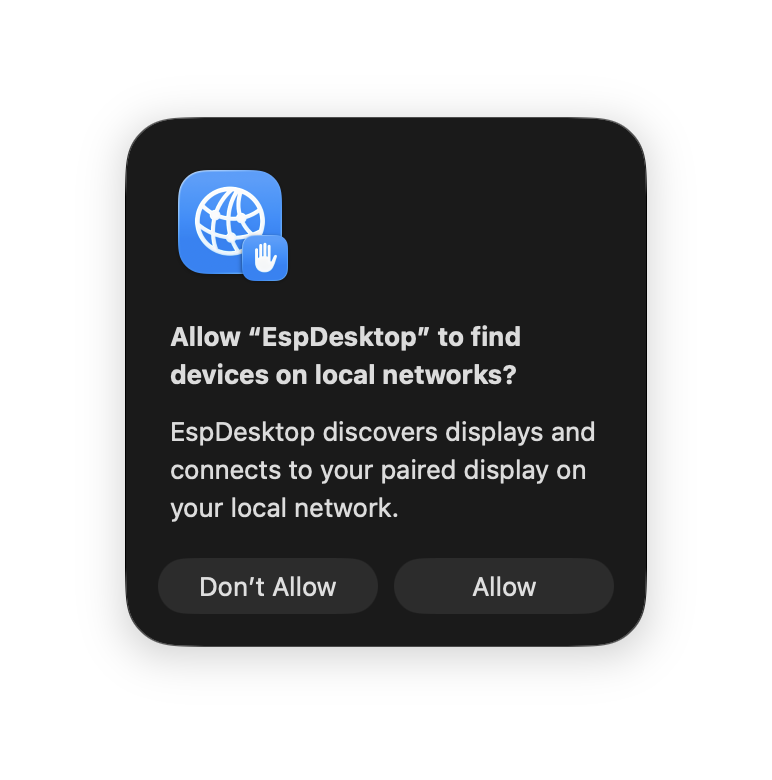
macOS permission prompts
Pairing and data
If macOS asks for Local Network access, choose Allow so EspDesktop can find your display.
- One Mac can connect to several paired displays at the same time. Each display has its own pairing credential and can access the apps and folders you’ve approved in the Mac app.
- The pairing code stays valid until pairing succeeds. The display generates a new code for the next pairing. EspDesktop stores the credential in macOS Keychain and checks the display certificate on later connections.
- Folder paths stay on the Mac. The display receives a friendly folder name and an anonymous identifier.
- The connector accepts only its defined controls. It does not run shell commands or accept incoming network connections on the Mac.
To remove a display, choose Forget beside it in Settings → Displays. A connected display with current firmware shows a new pairing code. If the display was offline or runs older firmware, reset pairing on the touchscreen or under System → Mac Companion in the display’s web settings.
See the EspDesktop privacy policy for how the app, display and docs handle information.
