Getting started with EspDesktop
Pair your display with your Mac to open apps and folders or run shortcuts from your desk.
Buy the screen
Buy the 4-inch Guition ESP32-S3 4848S040 from AliExpress. Once it arrives, follow the firmware installation steps below.

Install firmware
Connect the screen with a USB-C data cable. In desktop Chrome or Edge, select Install EspDesktop.
Select the new USB port and leave the screen plugged in until it restarts.
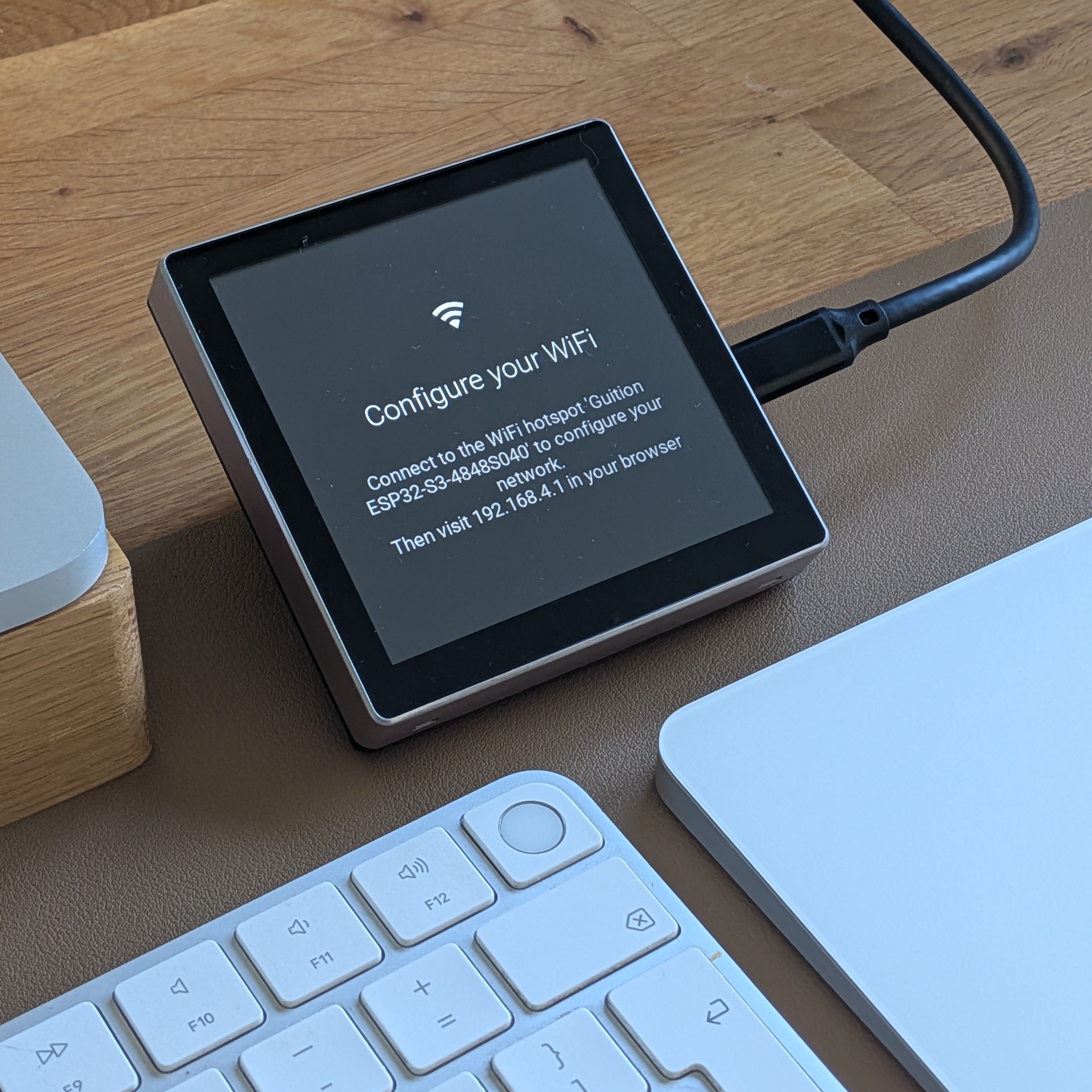
Join the Wi-Fi hotspot shown on the screen and open the address it lists. Select your **2.4 GHz Wi-Fi** and save, then reconnect your computer to that network.
Set up the Companion app
Use an Apple silicon Mac with macOS 13 or newer and install the Mac app and display firmware from the same release.
- Move EspDesktop to Applications and open it. Choose Allow if macOS asks for Local Network access.
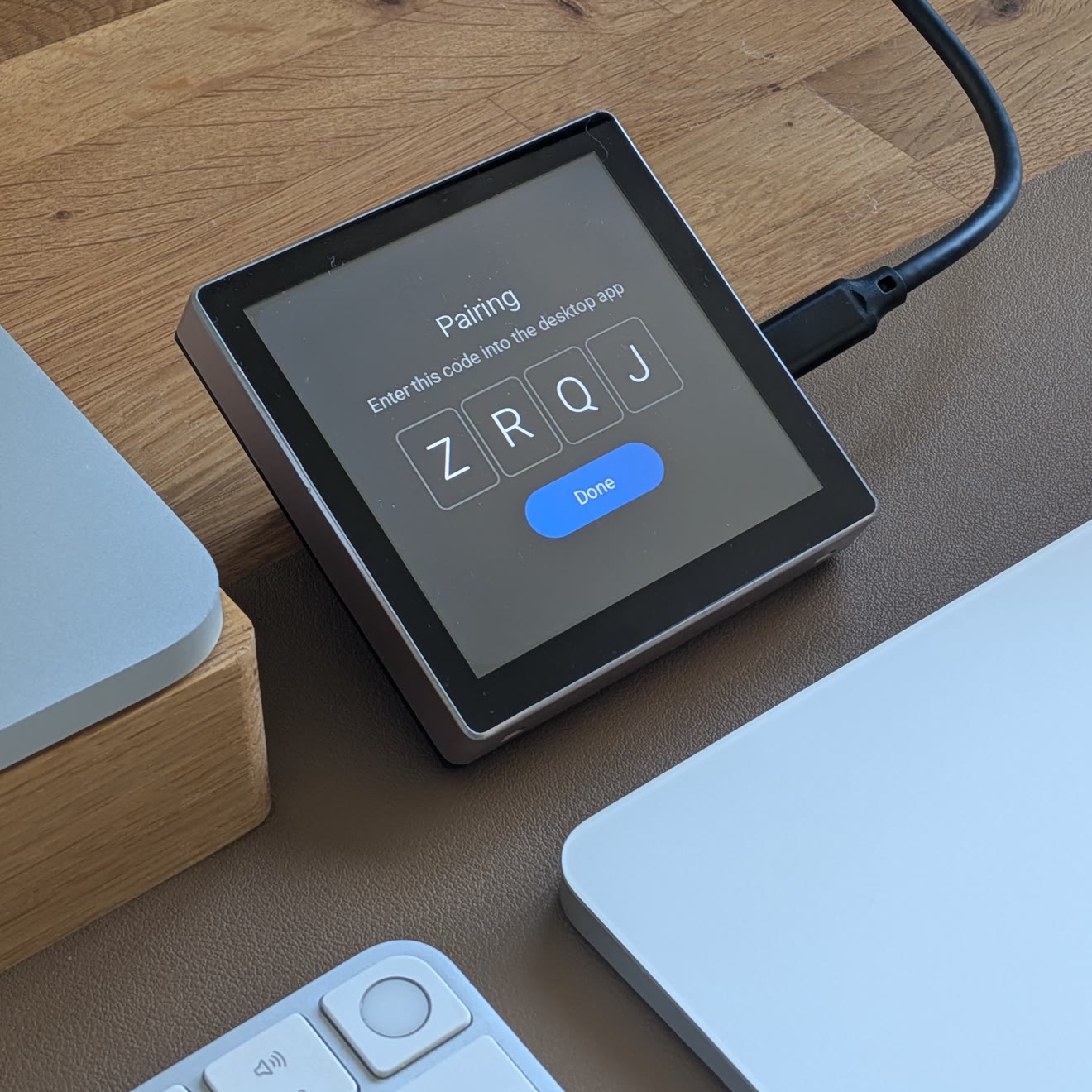
- Select your display in the Mac app and choose Continue. The touchscreen shows a four-letter code.
- Enter that code in the Mac app and choose Connect. The code screen closes on the display when pairing succeeds.
You can also show the code by tapping Pair on the display’s Setup screen or Unpaired in its Settings. To copy the code from your browser, choose Open pairing webpage in the Mac app, then Copy.
A green dot in the EspDesktop menu shows that your display is connected. Choose Add device from the same menu to pair another screen.
If the display asks Reset pairing?, confirm on the touchscreen to disconnect the previous Mac and show the new code. If your Mac shows Pairing Required, see how to re-pair the display.
Set up your screen
When the Mac app shows You’re connected, choose Configure Screen. Your browser opens the display’s setup wizard, where you can choose which apps appear on your screen. To open the editor later, choose Device under Mac Settings → Displays.
After setup, customise your Home screen and subpages with folders, website links, shortcuts, and more.

