Troubleshoot EspDesktop setup and Mac controls
Find the symptom you see on your 4848S040 or Mac.
| What you see | First check |
|---|---|
| The installer shows no USB port | Try a USB-C cable that carries data. |
| The firmware installer will not load | Open the installer in desktop Chrome or Edge. |
| The Wi-Fi hotspot does not appear | Give the display up to 90 seconds and check the network name shown on the screen. |
| The Mac app cannot find the display | Check that the Mac and display are on the same local network. |
| The display appears but will not pair | Check for the code or a reset prompt on the touchscreen. |
| Shortcuts or Mac Lock do nothing | Check macOS Accessibility access for EspDesktop. |
No USB port appears
- Connect the 4848S040 directly to the computer with a known USB-C data cable. Try another cable or USB port if needed.
- In desktop Chrome or Edge, open the EspDesktop installer and select Install EspDesktop.
- Pick the port that appeared when you connected the display. If you cannot identify it before flashing starts, cancel and compare the port list with the display disconnected.
The port should appear in the browser's device picker before you start flashing.
The firmware installer will not load
| Installer message | What to do |
|---|---|
| Your browser does not support WebSerial. Use Chrome or Edge on desktop. | Reopen the guide in desktop Chrome or Edge. |
| Could not check for WebInstall firmware. Check your connection. | Check your internet connection, then choose Try again. |
| Could not check for WebInstall firmware (HTTP …). | Retry once and check whether the latest stable release lists 4848S040 firmware assets. Include the HTTP status if you report the problem. |
| Browser-installable firmware for this display has not been published yet. | The installer could not find its firmware manifest. Check the official releases for 4848S040 assets. If a stable release contains them, report the message and release version so the hosted installer can be checked. |
| Failed to load the USB installer. | Reload in a current Chrome or Edge window. If the message returns, include the full message and browser version when reporting it. |
A working installer shows an Install EspDesktop button and opens the USB port picker when selected.
The display does not appear in EspDesktop
- Confirm the display and Mac are connected to the same local network.
- Allow local-network access for EspDesktop if macOS requested it.
- Check that guest WiFi or router client isolation is not separating devices.
- In the Mac app, choose Enter address manually and enter the display's IP address or
.localname.
Discovery only locates a display; it does not configure its WiFi. For a first-time firmware install, follow Install EspDesktop.
The display will not pair
Select the display in the Mac app and choose Continue. Enter the four letters shown on the touchscreen and choose Connect. If the code screen is closed, tap Pair on the display’s Setup screen or Unpaired in its Settings. You can also choose Open pairing webpage, then Copy and paste the code into the Mac app.
If the touchscreen asks Reset pairing?, confirm to replace the display’s saved pairing. If the Mac shows Pairing Required, open Settings → Displays, choose Re-pair beside the display, and enter the current code. The code stays valid until pairing succeeds.
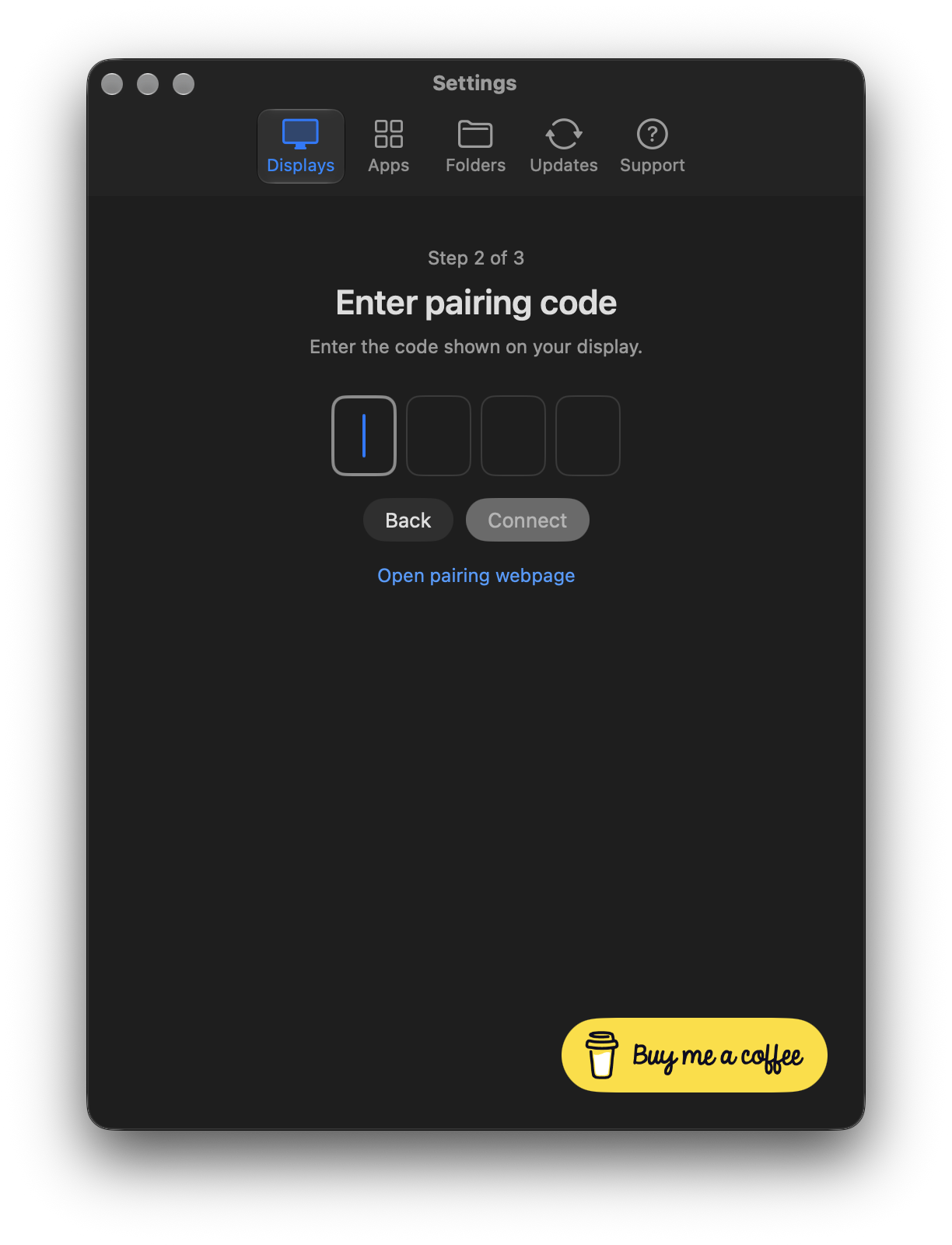
The Mac stores its credential in Keychain and checks the paired display certificate. If the certificate changed, forget the display and pair again rather than accepting the change silently.
| Pairing message | What to do |
|---|---|
| Could not open the display pairing page. | Confirm the display is on the same local network as your Mac. If the app still cannot open the page, go back and enter the display’s current IP address or .local name. |
| Enter the pairing code shown on the display. | Enter the code from the touchscreen or use Open pairing webpage to copy the code, then select Connect. |
| Unlock your Mac and allow EspDesktop to access Keychain, then try again. | Unlock the Mac and allow Keychain access if prompted. Return to the pairing code step and select Connect again. |
When pairing works, the Mac app shows You’re connected.
If you have one display paired, Support → Restart Setup clears its pairing and takes you through first-run setup again. With several displays paired, use Forget and Add Display on the Displays page to set up one display again. Your app and folder choices are kept.
A card does not work
- App or folder: confirm it is still approved in the Mac app’s Apps or Folders page.
- Keyboard shortcut or Mac Lock: enable EspDesktop under System Settings → Privacy & Security → Accessibility. If these cards stopped working after replacing the app, remove the old EspDesktop entry and add the installed app again.
If an older card is marked unavailable, replace or remove it in the web editor. EspDesktop keeps the card’s settings in saved layouts and backups so you can identify it.
For the control's exact requirements, see Mac Controls.
The touchscreen says to unlock your Mac
Unlock the paired Mac and make sure EspDesktop is running and connected. If the connection was lost while your Mac was locked, the display unlocks after the app reconnects and reports that your Mac is unlocked.
A Mac app or display update breaks compatibility
Install the Mac app and display firmware from the same EspDesktop release. If you are testing a development build, use the matching display firmware as well. See Companion Compatibility.
WiFi setup and reset recovery
The EspDesktop_XXXX setup hotspot can take up to 90 seconds to appear. Connect to the hotspot named on the display and open its shown address if the offline setup page does not open automatically. A custom hotspot name or address is preserved. After WiFi details saved, reconnect your phone or computer to home WiFi and follow the display's instructions. USB Improv provisioning is also available after installation.
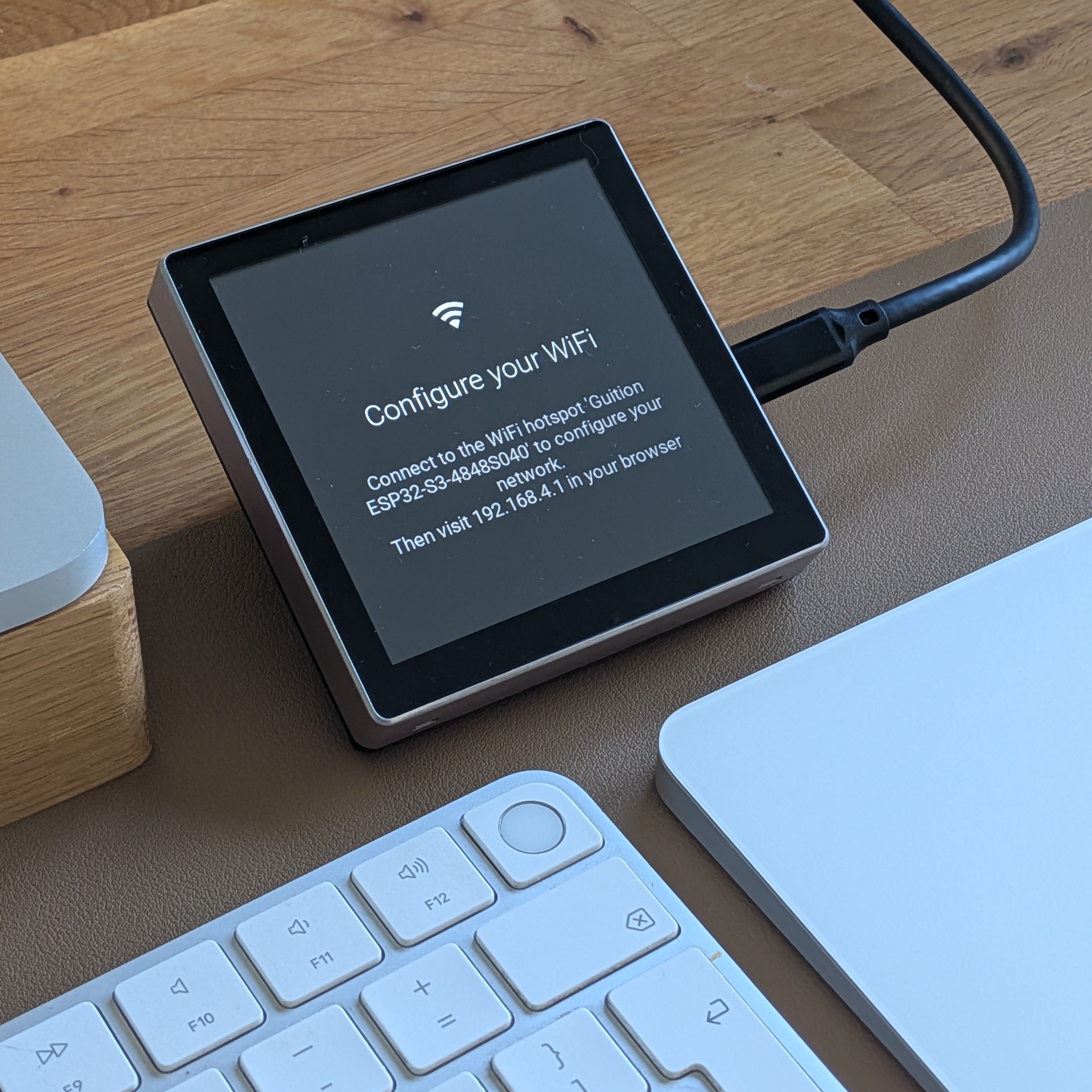
If an ESP32-P4 panel running EspControl can’t join WiFi, see the C6 WiFi recovery guide.
Save a backup before using System → System → Factory Reset. Partial reset retains WiFi and Mac pairing. Complete reset requires typing RESET, erases saved WiFi and Mac pairing, and requires pairing the Mac again. It disables WiFi networks compiled into the firmware so newly provisioned credentials remain selected after reboot. Installed firmware remains in place.
Still stuck?
Open Support in the Mac app or report an issue. Include the display model, macOS and Mac app versions, display firmware version, and the exact message you saw. Leave out Wi-Fi passwords and pairing codes.
