Screen settings
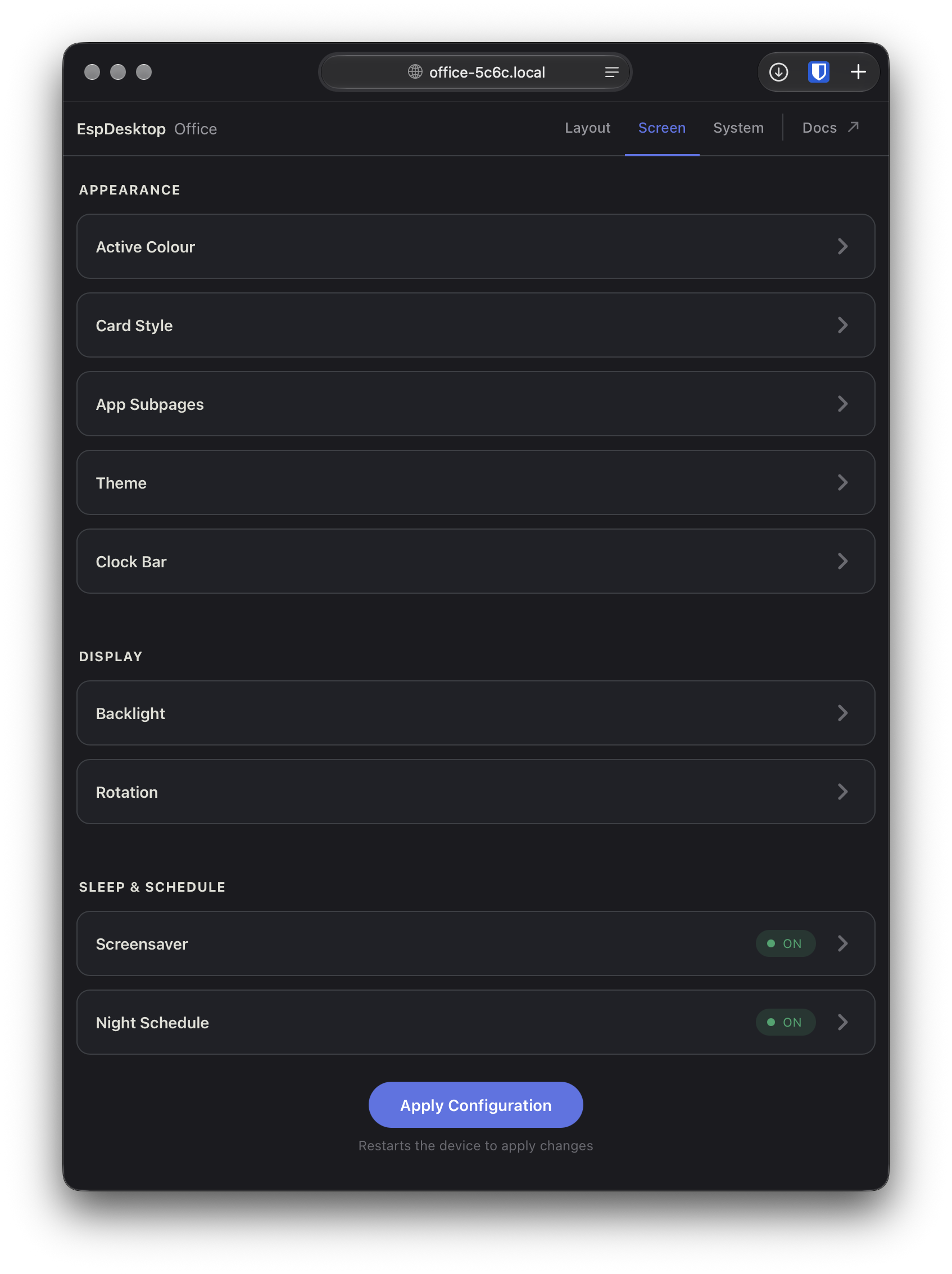
Choose Customize Display from the EspDesktop menu bar icon, or open the display’s local address in your browser. Select the Screen tab to change how the touchscreen looks and behaves.
Choose Apply Configuration at the bottom of the tab when you’re ready to restart the display and apply your changes.
Appearance
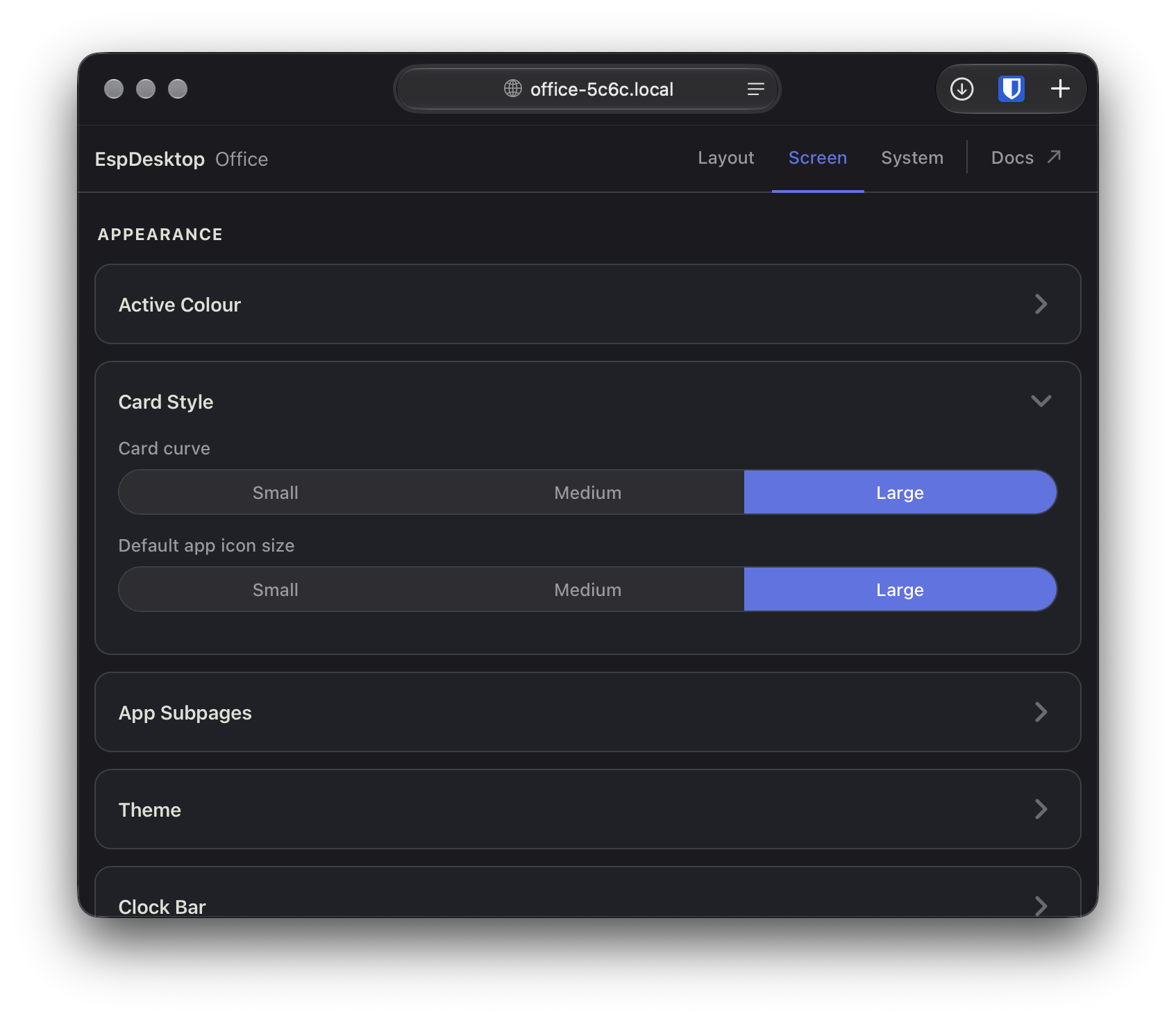
- Active Colour sets the accent colour. Card Style sets the card curve and default app icon size.
- App Subpages controls whether shortcut pages open when an app comes into focus and what happens when you switch apps. See app page behaviour.
- Theme offers Dark, Light or Automatic. Automatic follows sunrise and sunset or times you set.
- Clock Bar shows or hides the status bar on the home screen.
Display
- Backlight controls brightness. Choose Manual for a fixed level, Automatic to follow sunrise and sunset, or Timed to set your own dawn and dusk times. Automatic and Timed let you set separate day and night levels.
- Rotation turns the interface by 0°, 90°, 180° or 270° to match how the display is mounted.
Sleep & Schedule
- Screensaver can dim the screen, show a clock or turn the display off. Choose Timer to start it after idle time, or App Connection to start it when your paired Mac locks or disconnects.
- Night Schedule sets a daily period to dim the screen, turn it off or show a clock. It takes priority over the screensaver. It is off on new displays. If you enable it with the preset hours and brightness, the screen dims to 15% from 7:00 PM to 7:00 AM in the display’s local time.
When the display is asleep, tap once to wake it, then tap a card to use it.
