Run Mac keyboard shortcuts
A Key Shortcut card can run a preset for a specific Mac app or send a custom key combination to the active app.
Create a shortcut card
- In the display’s web editor, select an empty tile and choose Companion → Key Shortcut.
- Use the Application tab, which opens by default, to pick a preset for an app. Switch to Custom to enter keys such as ⌘ Command + F.
- Save and tap the card. An Application preset opens or focuses the selected app before sending the keys. A Custom shortcut sends the keys to whichever app is already active.
The Application tab lists apps with shortcut presets. After choosing an app, use Find a keyboard shortcut… to search by name or key combination, then select a row. For example, type New Tab or Cmd+T. Bundled presets are available while the Mac is offline. Expanded presets can include single keys and sequences, and need an updated display and Mac Companion. Approve the target app in EspDesktop on your Mac. The card skips the shortcut if the app cannot be brought to the front.
Custom shortcuts need Command, Control, or Option plus a key. Shift is optional.
Look up keyboard shortcut presets by app.
Allow accessibility access
Enable EspDesktop in System Settings → Privacy & Security → Accessibility so it can send keystrokes.
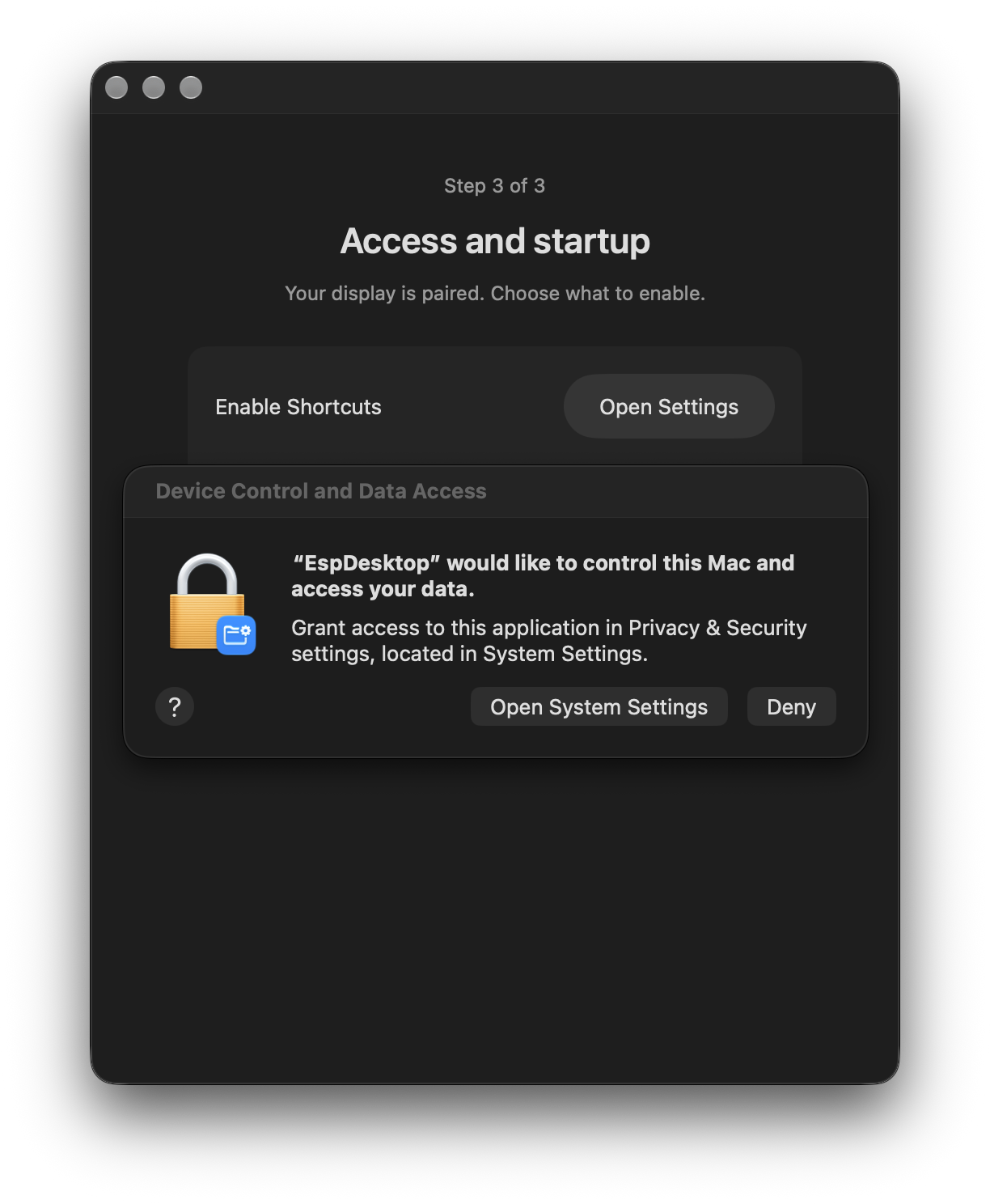
If a tile still does nothing, follow the shortcut and Mac Lock troubleshooting steps.
Group shortcuts by app
Use ready-made app subpages to keep an app’s shortcuts together. New pages start with a selection of useful shortcuts for the app. Smaller displays show as many as will fit, with space for Back. From inside an app’s subpage in the web editor, right-click a card and choose Shortcut List to change which presets appear and how they’re ordered. This opens the full list, with Find a shortcut available for long lists. In the app card’s settings, use Show all shortcuts to expand a long list. You can add shortcuts or rearrange the ones on the page.
When you add a Key Shortcut card inside an app subpage, the Application tab opens with that app selected. You can pick a different app or switch to Custom.
The web editor dims these shortcuts when the app loses focus or the Mac disconnects. You can still edit and rearrange the tiles.
Missing a preset? Suggest a shortcut.
