Create subpages for Mac controls
Use a Subpage card to open a folder of related controls. Each subpage reserves one tile for Back, which takes you to its parent page. App subpages use the app’s large icon as their Back tile. Other subpages use an arrow and label.
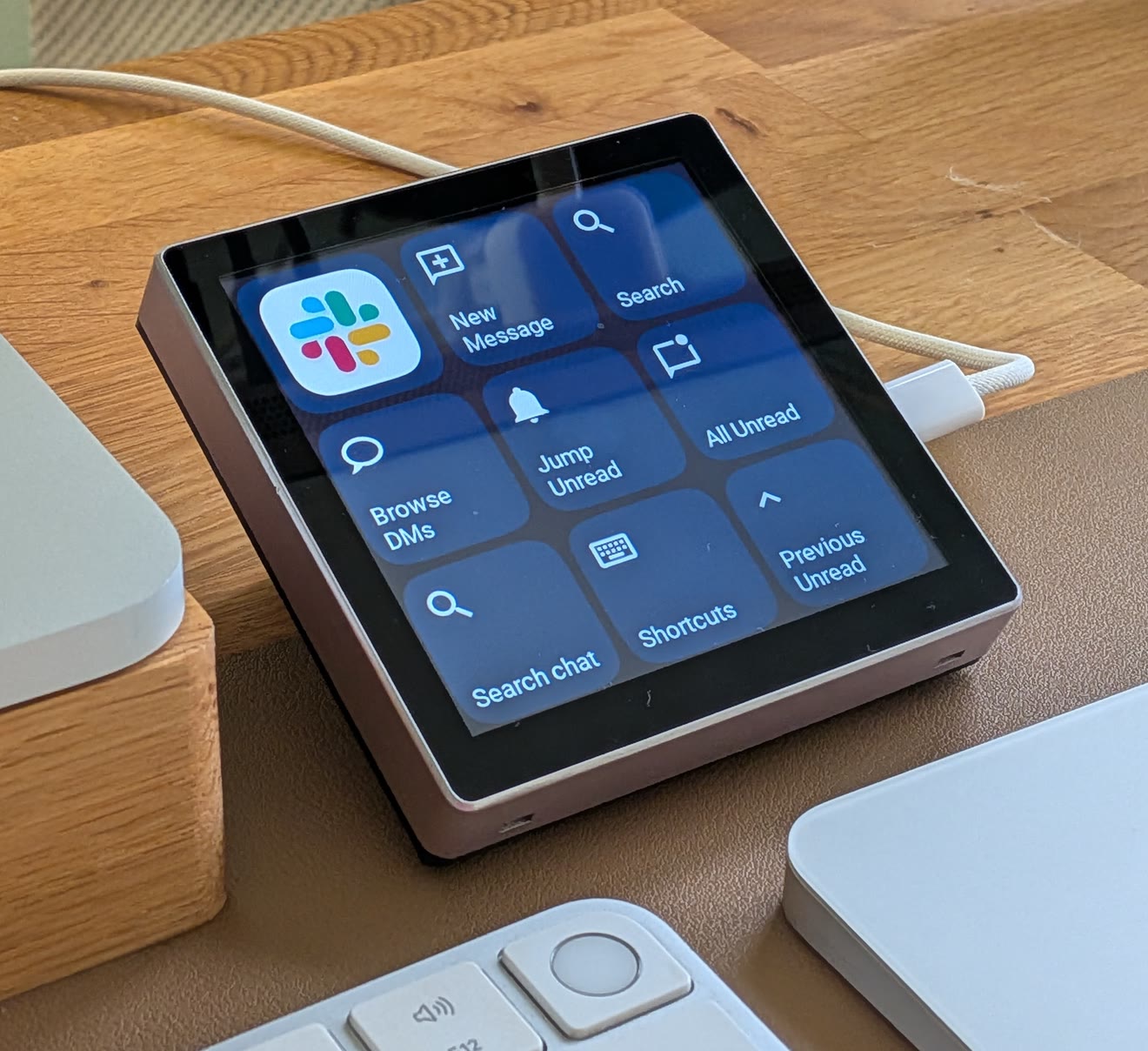
All subpages hide the top title and clock bar so the cards use the full screen. Clock Bar settings apply to the home screen only.
App page behavior
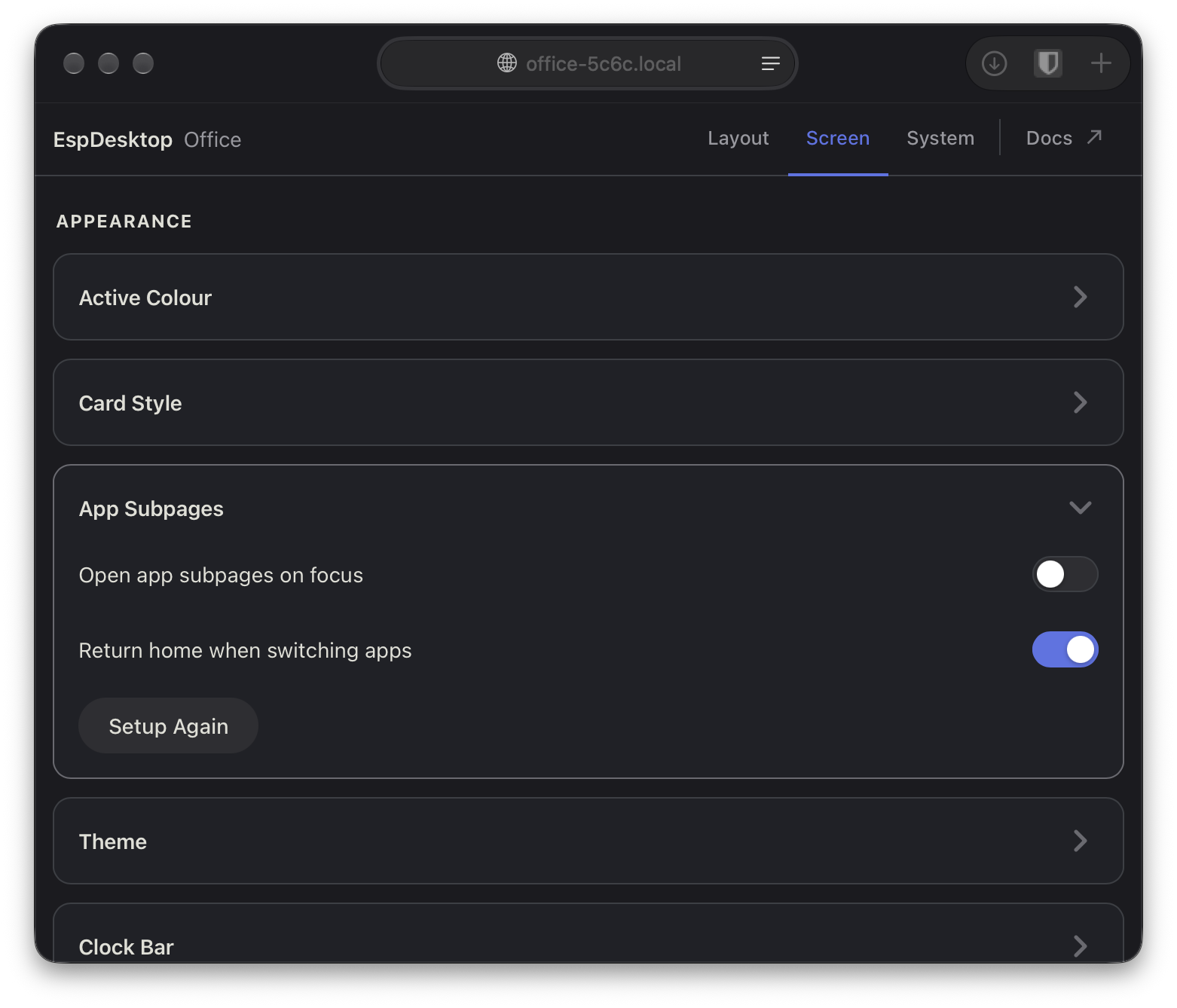
Under Screen → Appearance → App Subpages, Return home when switching apps is on by default. Turn it off to keep the current app page open when you switch apps on the Mac. With it on, the display opens a matching new app page when automatic opening is enabled, or returns to the immediate parent page. The setting is saved on the display and included in backups.
Create a subpage
- Open the display's setup page in a browser and choose the Layout tab.
- Select an empty home-screen space and choose Subpage as the card type.
- Give the card a label and icon if you want them.
- Choose Edit Subpage in the card settings.
- Add and arrange cards on the subpage as you would on the home screen.
- Choose its Back card to return to the parent page.
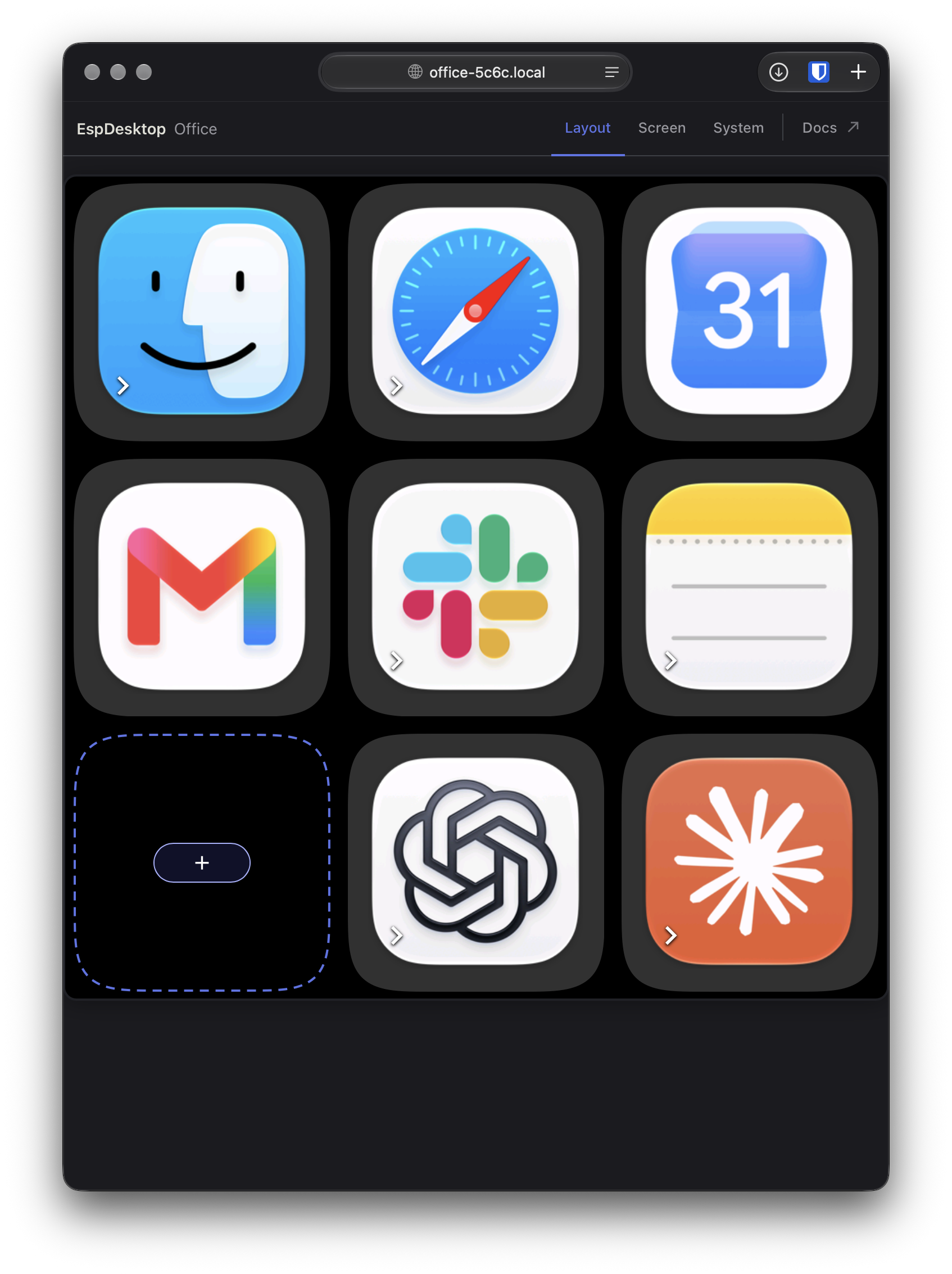
You can also right-click an empty space in the editor and choose Create Subpage.
Two levels are supported: Home → Folder → Subpage, including Home → Folder → App shortcuts. Open a folder and repeat the steps above to add the second level. Back returns to the immediate parent page. A second-level page cannot contain another subpage.
For an app inside a folder, edit its app card, enable Add app subpage, and save. Choose Edit Subpage to arrange its shortcuts. The normal app focus and automatic switching settings also apply inside folders.
Pages share the display's existing total card and saved-layout limits. A layout that exceeds them is rejected without replacing the saved layout.
Nested layouts use the new saved-layout format and require firmware with two-level support. Keep a backup before upgrading. After saving with this release, downgrading to older firmware is unsupported. The new firmware still imports older flat layouts and backups.
See how to move or copy cards between Home and a subpage.
ChatGPT Desktop shortcuts
Press Command + / in ChatGPT Desktop to see or customize its keyboard shortcuts. To search past chats from the display, assign Switch chat… (chat search) a shortcut in ChatGPT Desktop, then create a custom Key Shortcut card with the same keys.
New Chat sends Command + N.
Chat Bar / Mini sends Option + Space. ChatGPT Desktop may call this action Toggle Mini in its Keyboard Shortcuts settings.
Voice Chat sends Control + Shift + V. Bring the main ChatGPT window to the front before using the tile. ChatGPT can start listening from its floating pet or Mini controls. If listening does not start, check Toggle voice chat in Settings → Keyboard Shortcuts and see ChatGPT Voice for microphone setup. If you use a different binding, create a custom Key Shortcut card with the same keys.
The Next Tab and Previous Tab tiles use Control + Tab and Control + Shift + Tab. To use those keys to cycle through recently viewed chats instead, assign them to Next recently viewed chat and Previous recently viewed chat under Settings → Keyboard Shortcuts in ChatGPT Desktop. Saved tiles keep their names and keys when the preset list changes.
If you already have Tab 1 through Tab 9 tiles, they send Command + 1 through Command + 9. In ChatGPT Desktop, set Settings → Keyboard Shortcuts → Number shortcuts to ⌘1–9 for Tabs. Open two tabs in the current chat and try Command + 2 on your Mac before testing the Tab 2 tile. Each tile needs an open tab at that position.
Dictate in ChatGPT Desktop
Use the Dictate microphone beside the message box to turn speech into draft text. If you have a saved Start dictation tile that sends Control + Shift + D, that combination is a browser shortcut.
If Single-tap dictation is available under Settings → Keyboard Shortcuts in ChatGPT Desktop, assign it a shortcut with Command, Control, or Option plus a key. In EspDesktop, replace the old tile with a Key Shortcut card and enter the same keys in the Custom tab. Tap the tile once to start dictation and again to stop.
Swipe back
Swipe right from the left edge of a subpage to use its Back action. This also works on app subpages while the touchscreen is unlocked and showing its cards.
