Backup & restore
Export a backup before a firmware update or factory reset, or when you want to move your setup to a replacement display. The file includes your cards, layout, subpages and display settings such as colours, brightness, sleep schedules, language and time preferences.
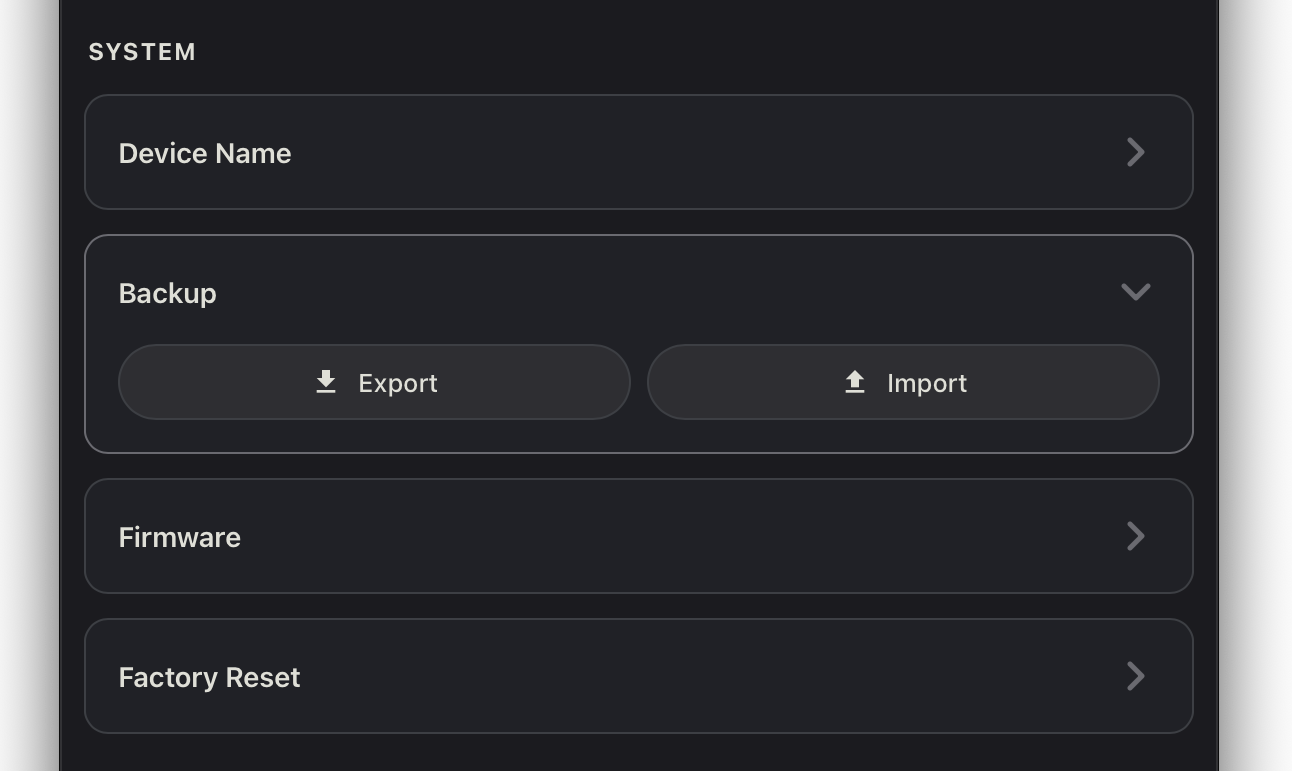
Export a backup
- Open the display’s web editor using Customize Display from the EspDesktop menu bar icon or the display’s local address.
- In the System tab, find the System heading and open Backup.
- Click Export. Your browser downloads a dated file ending in
.json. Keep it somewhere you can find it later.
Keep the file private if your cards contain personal web addresses or other sensitive settings.
Restore from a backup
- Open the web editor for the display you want to restore. If it already has a setup you want to keep, export that setup first. Import replaces the display’s current layout with the saved one.
- In the System tab, open Backup and click Import. Select the backup file.
- If Restore backup appears, leave Also restore panel name unchecked to keep the display’s current name and address. Check the box to reuse the saved name. Click Restore to continue. If the name changes, reopen the editor at the address shown in the dialog after the display restarts.
- Wait for the import to finish. Review any messages in the editor, then open Layout and check that your cards and subpages are where you expect them.
On a replacement display or after a complete reset, connect the display to Wi-Fi before importing. Pair the Mac app separately. The backup covers the display configuration. Wi-Fi credentials, Mac pairing and settings stored in the Mac app stay separate.
Restore to a different display or firmware version
When the destination has a different grid, EspDesktop rearranges cards to fit where it can. Check the restored layout and subpages, especially if the destination has fewer slots. Backups with pages nested inside other subpages require the same display model.
If the editor asks for newer firmware, update the display and try the import again. When returning to older firmware, use a backup made before the upgrade. Older cards may appear as unavailable on current EspDesktop firmware. You can replace or remove them in Layout.
