System settings
Choose Device in the Mac app under Settings → Displays, or open the display’s local address in your browser. Select the System tab to manage the device.
Choose Apply Configuration at the bottom of the tab when you’re ready to restart the display and apply your changes.
Display system settings
Mac Companion
Open Connectors → Mac Companion to check the connection. While the display is unpaired, choose Copy to copy the four-letter code, then paste it into the Mac app. Pair the Mac app.
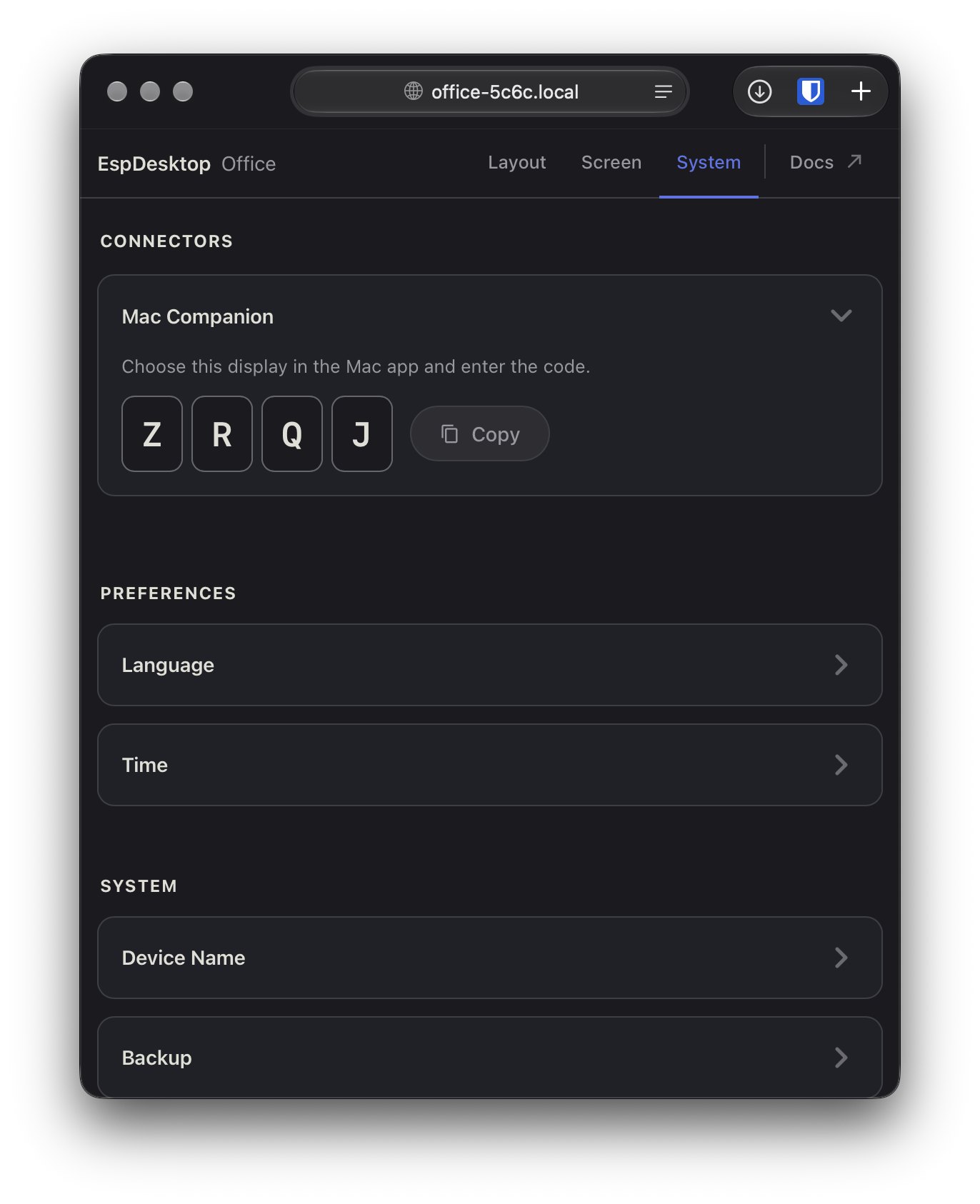
To replace a saved pairing, choose Reset pairing and confirm. The touchscreen shows a new code. If the Mac app shows Pairing Required, choose Re-pair in Settings → Displays and enter the code.
Home Assistant
On supported 4-inch firmware, open Connectors → Home Assistant to enable ESPHome or choose Resync buttons to refresh the button list. Run EspDesktop actions from Home Assistant.
Preferences
- Preferences → Language changes the language shown on the touchscreen.
- Preferences → Time lets you follow the paired Mac’s time zone or choose one yourself. You can also switch between 12- and 24-hour time and set custom time servers.
Mac screen lock
Locking your paired Mac also locks the touchscreen while the EspDesktop Mac app is running. If the connection drops while locked, the display waits for EspDesktop to reconnect and report that your Mac has unlocked.
Rename the display
Open System → Device Name within the System tab and choose Save & Restart after entering a name. Reopen the editor at the new .local address shown there. The browser tab shows EspDesktop - Kitchen, for example, or EspDesktop - 5c6c using the last four characters of the device’s MAC address if no name is set.
Backup
Open Backup under the System heading in the System tab. Use Export to save the display’s configuration to a file and Import to restore it. Back up and restore a configuration.
Update the display firmware
In the System tab, open Firmware → Firmware updates and choose Check for Update. If an update is available, choose Install Update and keep the display powered while it restarts. Auto updates controls automatic installation and how often the display checks.
Update the Mac app and display together
- Export a layout backup and record the installed Mac app and firmware versions before starting.
- Open the EspDesktop releases and choose a stable release with both the Mac DMG and 4848S040 firmware. Use the firmware update option above and install the Mac app from the same release. If Check Now in the Mac app offers a different version, use the DMG for the matching release.
- After both have restarted, check that the Mac app shows the display connected and tap a known app tile to verify that the Mac responds.
Roll back to a matching release
In Firmware updates, use Previous firmware if it offers the version you need. Install the Mac app from that same release. If the older firmware cannot read the current layout, restore the backup you made before the update. Verify the connection and test an app tile again.
If an update leaves the display unpaired or unavailable, see update and compatibility troubleshooting.
Reset the display
Open Factory Reset in the System tab.
Back up before resetting
Choose Save backup before either reset. Both options clear saved cards and layouts.
- Partial reset clears cards, layouts, subpages, the saved device name and display preferences. It keeps your Wi-Fi connection and Mac pairing.
- Complete reset also clears saved Wi-Fi and Mac pairing. Type RESET to confirm, then follow the first-time setup instructions on the display.
Both options keep the installed firmware. Wait for the reset to finish before importing a backup. Reset and Wi-Fi recovery.
