Launch Mac apps
Tap an Applications card to launch an approved app or bring it to the front on your Mac.
App subpages open automatically when their app gains focus by default. Switching between apps with subpages goes directly to the matching page. Browser tabs and Finder folders are checked separately so they do not hold up app switches. To require a press instead, turn off Screen → Appearance → App Subpages → Open app subpages on focus. Press an app card to focus its app, then press it again once the app is active on the Mac to open the subpage. This setting applies to every app subpage on the display.
Launch an app
Choose apps in the Mac app
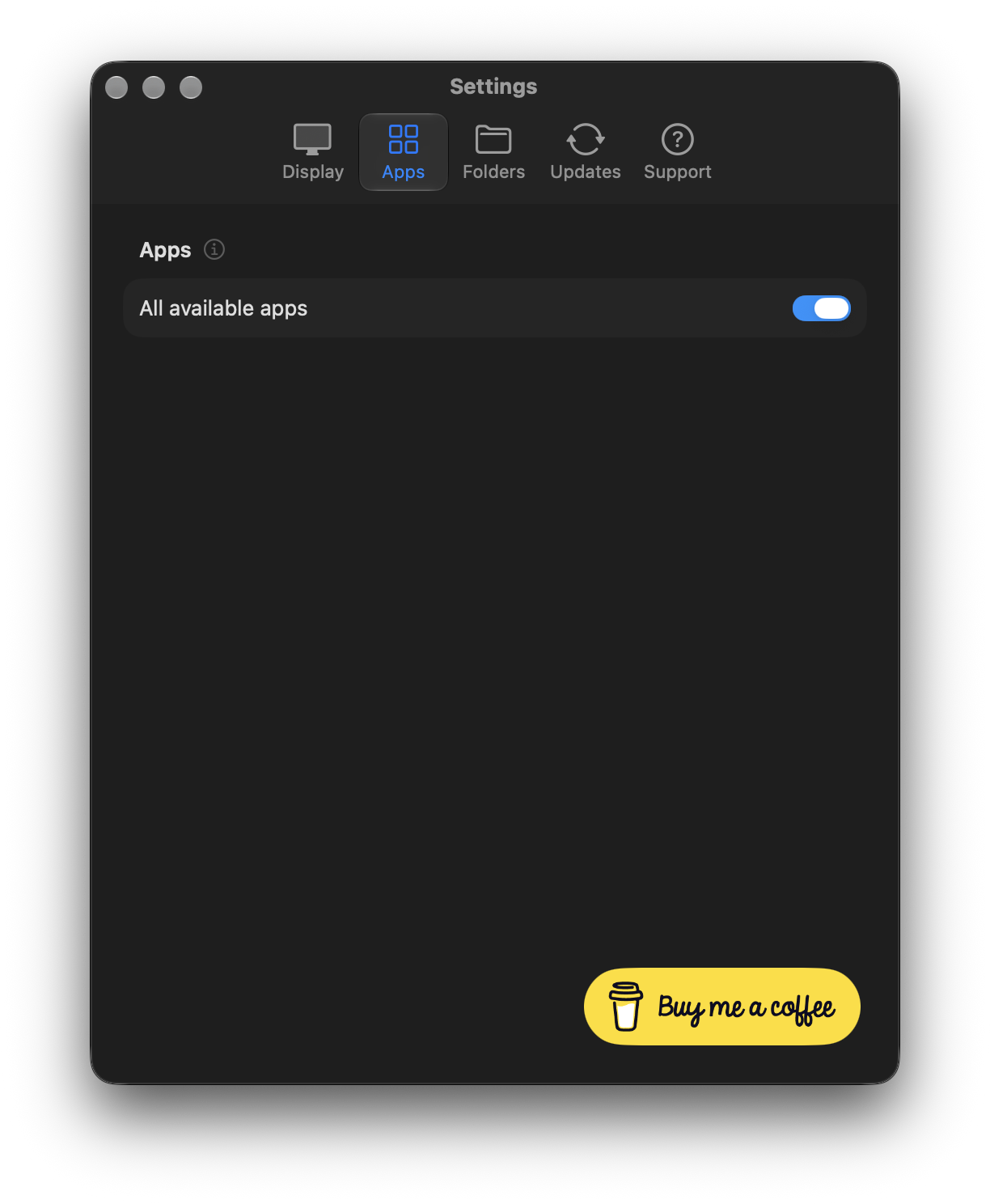
Open Apps in the Mac app. All available apps is on by default. To limit what the display can launch, turn it off and enable the apps you want to use.
Add a card in the web editor
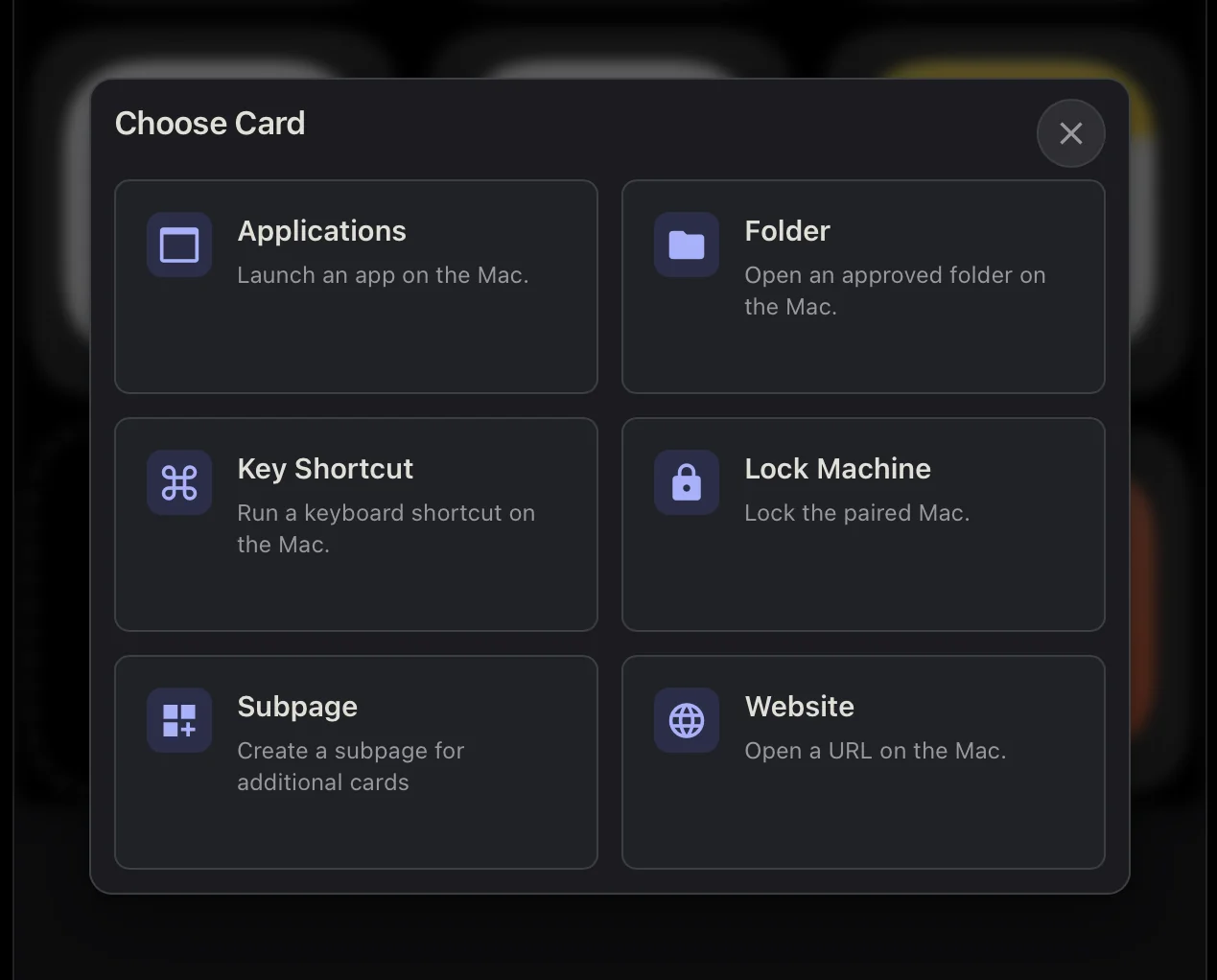
In the display’s web editor, select an empty tile and choose Applications. If the picker shows connector tabs, look under Companion.
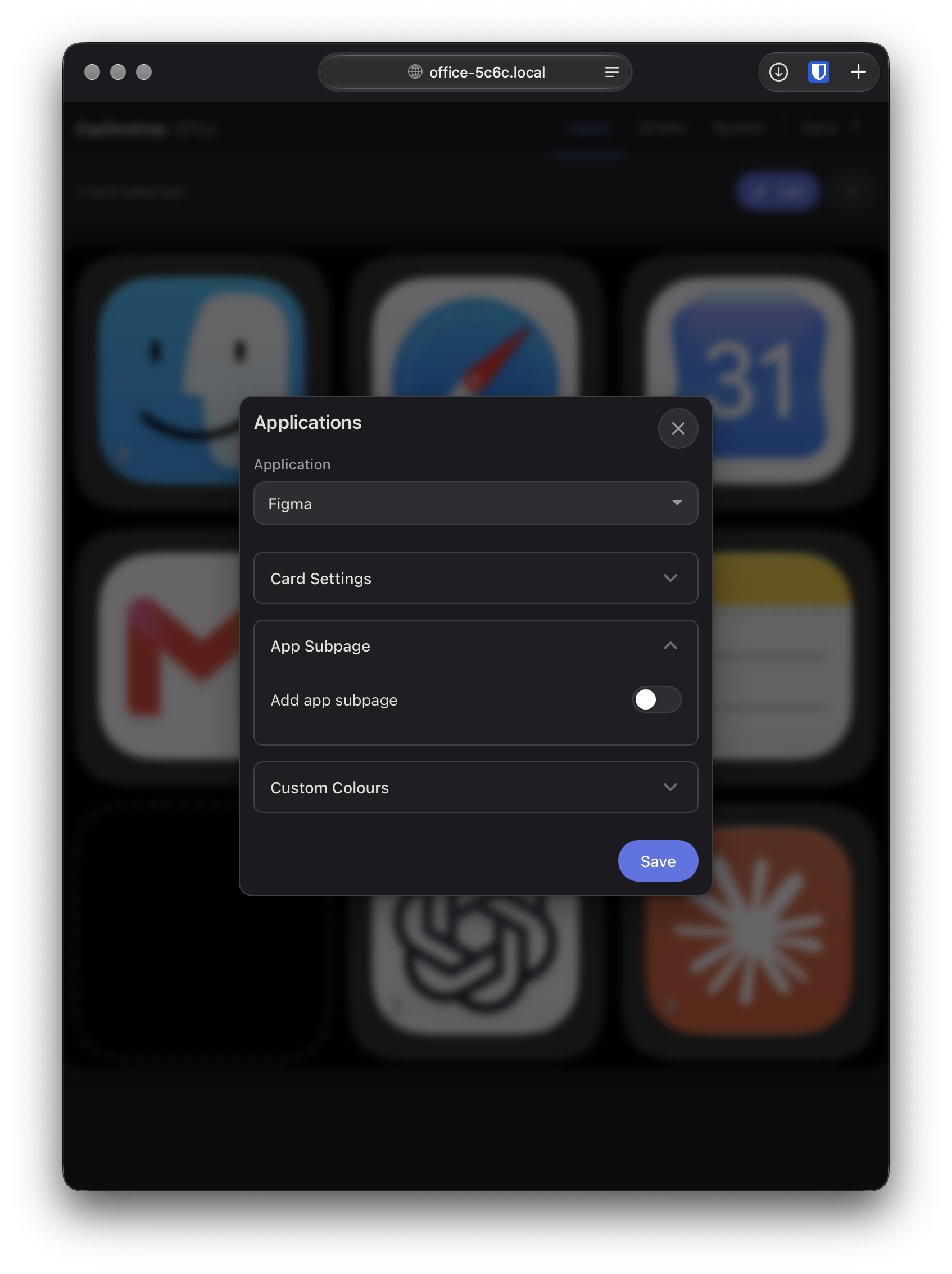
Select an approved application and choose Save.
The card uses the app's friendly name by default. Enter a custom title in its settings to show a different name.
Use Default app icon size in Screen appearance settings to size Mac app artwork. Each app card also has an App icon size override in Card Settings and its right-click menu. Small keeps the original size, Medium enlarges the artwork above the label, and Large fills the available space and hides the label. Choose Default to follow the global setting. The app card uses its active fill colour while the Mac reports that app is in front; background apps use the normal fill.
App cards use the normal card theme by default. Previously saved custom backgrounds are preserved. Backgrounds are not generated from app icons.
Approve Finder in the Mac app to use its launch card. Touching an app card sends its action immediately. With a matching current Mac app and firmware, macOS activation updates the active colour directly, without waiting for window, Finder-folder or browser-tab checks. The fill has no outline or fade. Detailed focus checks still control app subpages and keyboard shortcuts separately; touch actions and page changes do not wait for either update.
Ready-Made app subpages
An approved Applications card can offer an editable subpage when EspDesktop includes shortcut templates for that app. Examples include Safari, Slack, Codex, and OpenCode Desktop.
- Add an Applications card for an app with a shortcut template.
- Open App Subpage in its card settings and turn on Add app subpage.
- Choose the shortcuts to include and drag them into order.
For OpenCode Desktop on Mac, the starter tiles include New Session, Command Palette, Find Files, and Review Changes. See all 12 presets in the OpenCode shortcut reference.
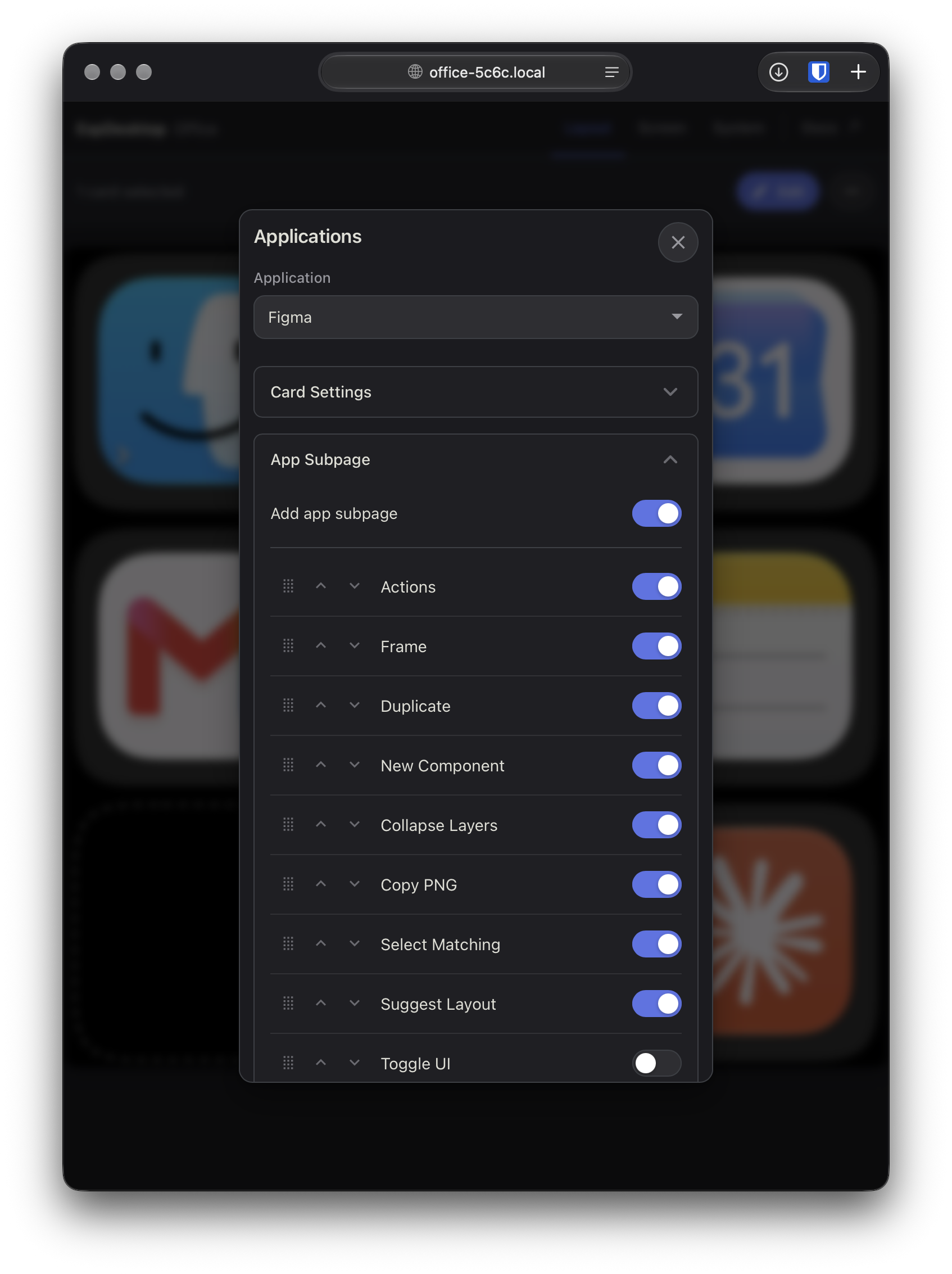
The page uses the same templates as the Application tab on a Key Shortcut card and remains editable. Turning the app subpage option off preserves your changes.
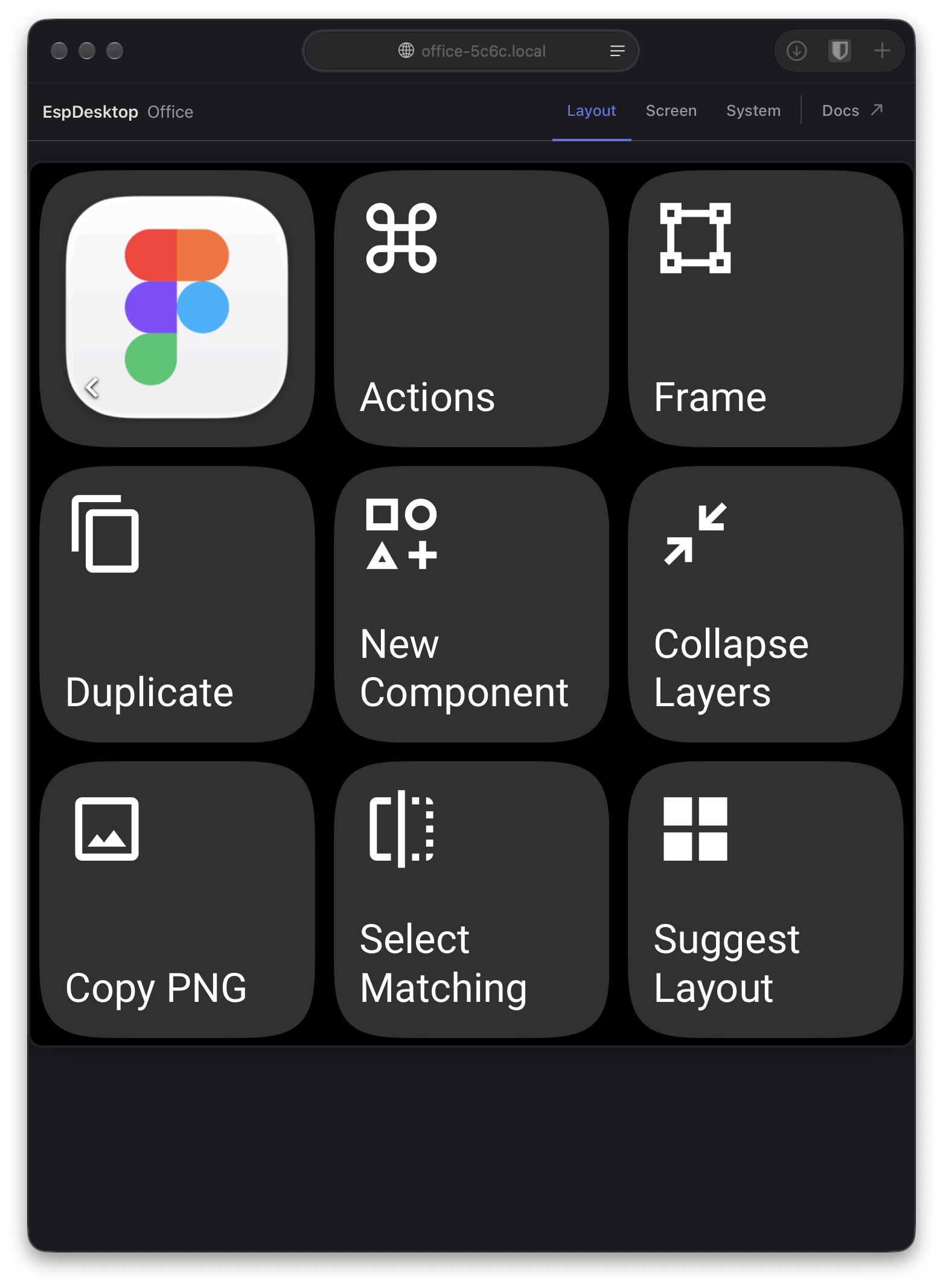
You can add a custom shortcut in an empty tile on the app subpage.
For standalone pages, see Subpages. For folders, see Open Finder folders.
When you close the last visible window of the foreground app, the display returns to the Home page or subpage you were using before the shortcuts opened. This also applies to pages opened by tapping an app card. Return home when switching apps controls what happens when you switch to another Mac app.
See all app presets.
Website cards
To add a tile for a web address, see Open Websites on Your Mac.
