Adding a card
Choose a card type
- Open your display’s address in a browser and select Layout. Open Home or the subpage where you want the card.
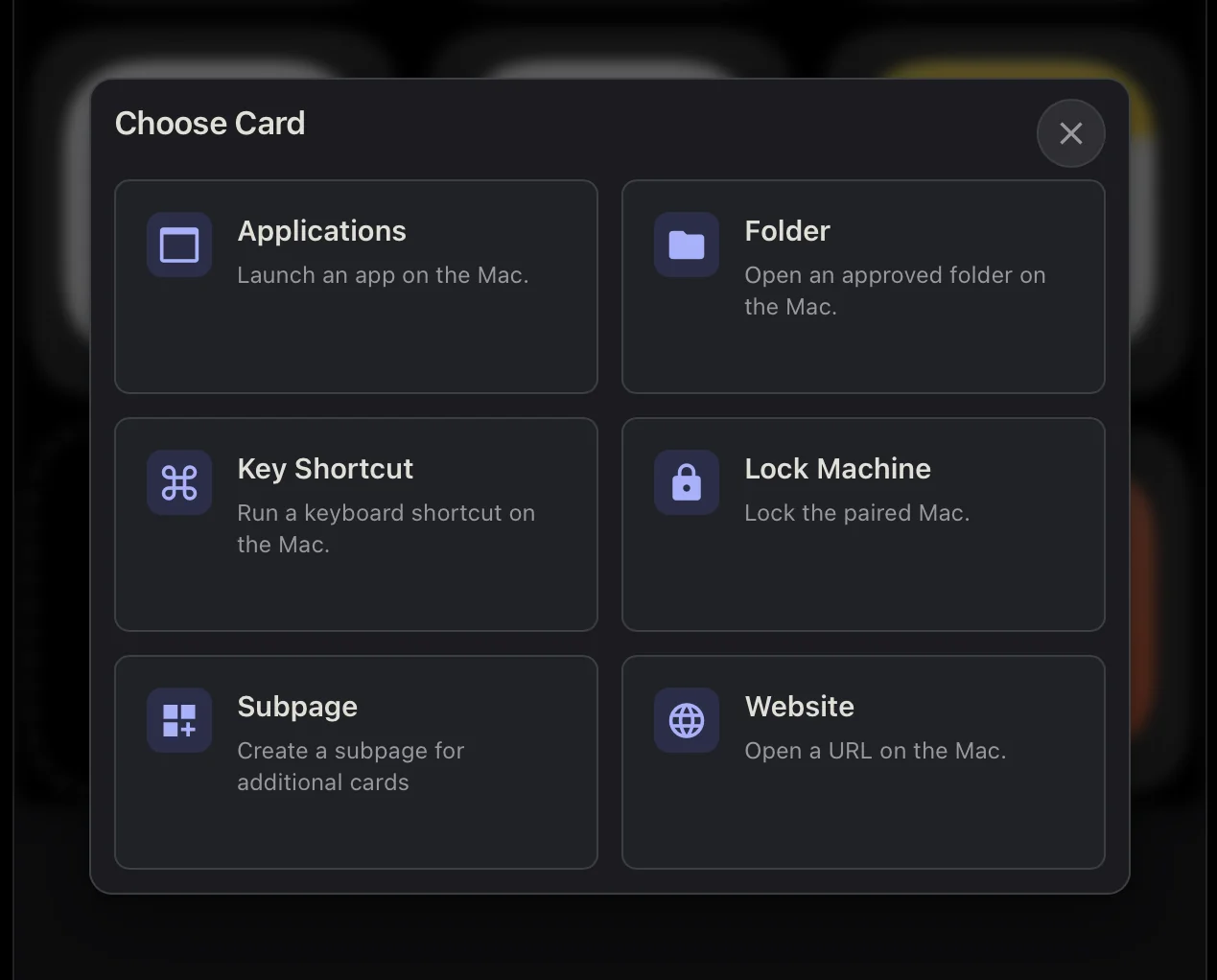
- Click + in an empty spot. The Choose Card dialog opens.
- Pick what the card should do. Choose Applications to open a Mac app, Folder to open an approved folder, or Keyboard Shortcut to run a keyboard shortcut.
Set up the card
Fill in the options for the card type you picked. For example, choose the app for an Applications card or enter a web address for a Website card. Mac controls need a paired EspDesktop Mac app.
- Label sets the name shown on the touchscreen. Look under Card Settings if the field is tucked away. Where the field shows Automatic, leave it blank to use the suggested label.
- Icon opens the icon picker. Search for an icon by name and select it. Choose Auto to use the default icon when available. Some cards let you pick separate Off Icon and On Icon values.
Customise the colours
- Expand Custom Colours in the card editor. Choose a preset for the card background, or use the eyedropper button to open the custom colour picker.
- Where Active state colour is available, choose Matching for a shade based on the card background, Global to use the screen’s active colour, or Custom to pick a separate colour.
- Select Save to add the card to the touchscreen. To change it later, right-click it in Layout and choose Edit Card. For a quick background change, use Card Colour in the right-click menu.
See Screen grid for moving and resizing cards.
